Enrol a machine with the agent, no SSH
What you'll learn:
- When to choose the agent rather than SSH, and what the agent can and cannot do
- How to create an agent machine and get its one-line installation command
- How to make the machine trust Repod's certificate when it is self-signed
- How to read the first inventory, and how to check, force or remove the agent
Time: ~20 minutes
Prerequisites: An administrator account, and a Debian, Ubuntu or RPM-based machine on which you have sudo and which can reach Repod over HTTPS. Python 3, curl or wget, and systemd must be installed.
Why an agent
With SSH, Repod connects to the machine to read its packages. That needs a route from Repod to the machine and a key on the machine. With the agent, it is the machine that calls Repod: a small Python script sends the list of installed packages once an hour. Nothing has to be allowed in from outside, which suits machines behind a firewall or a NAT.
| SSH | Agent | |
|---|---|---|
| Who starts the exchange | Repod | The machine |
| Inbound access to the machine | SSH port, Repod's key | None |
| Inventory and vulnerability scan | Yes | Yes |
| Remote installation of a package | Yes | No |
| Compliance scan (CIS, STIG) and drift on files, services and permissions | Yes | No: they need a command channel |
| Package drift rules | Yes | Yes |
The agent only sends. Repod never runs anything on an agent machine, by design. For the same reason, the agent understands Debian and Ubuntu (dpkg) and RPM-based systems; an Alpine machine is not supported.
Step 1 — Create the machine in Agent mode
Open Clients and click Ajouter un client.
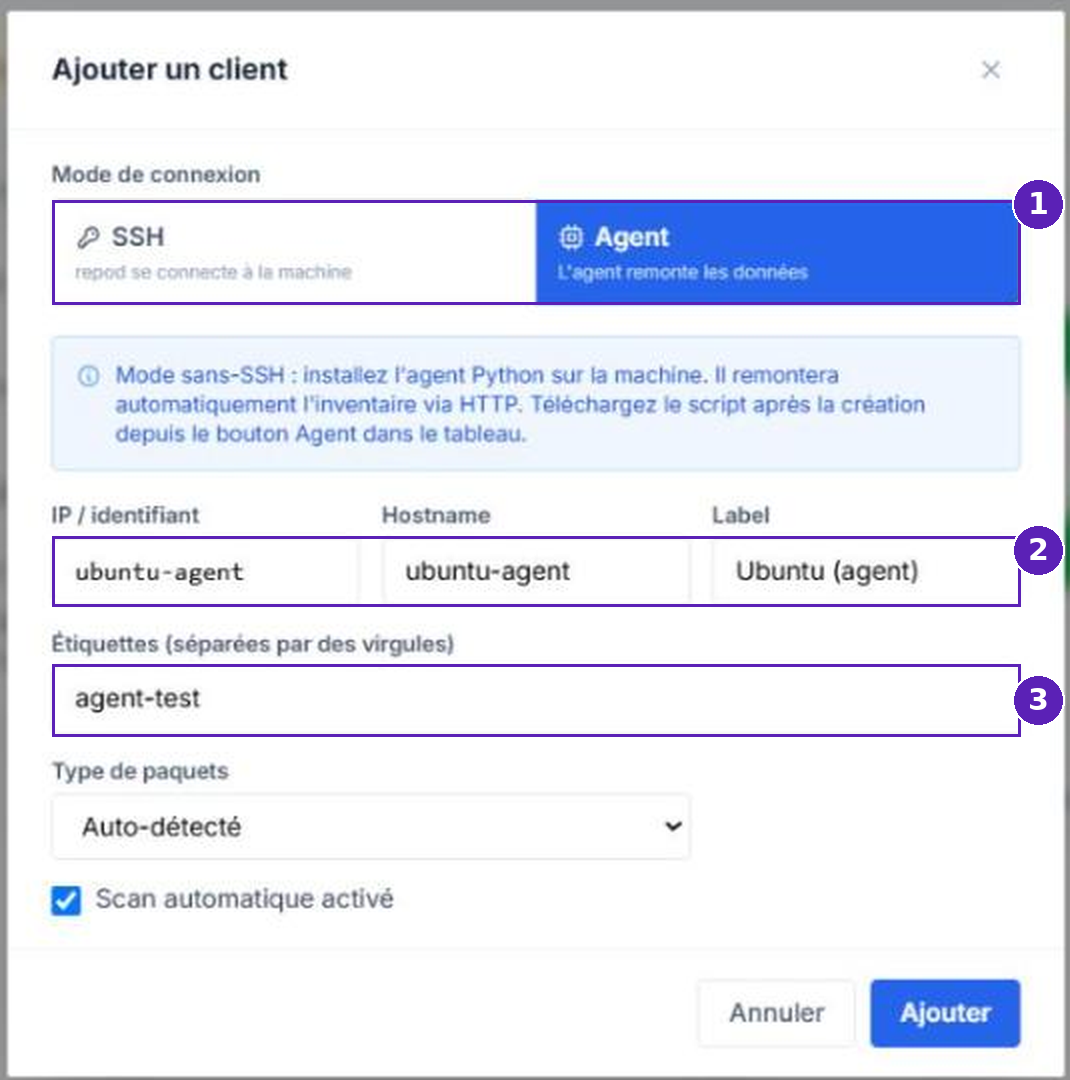
Figure 1 — The Agent mode (1), the identifier, hostname and label (2) and the tags (3).
- Choose Agent (1). The SSH fields disappear.
- IP / identifiant (2) is only a name for Repod: it does not have to be an address. The agent will report the machine's real name and address itself at its first contact.
- Add tags (3) if you use them to group machines, then click Ajouter.
The machine appears in the list as Jamais vu until the agent has called Repod once.
Step 2 — Make the machine trust Repod's certificate
The agent checks Repod's certificate. If Repod uses a certificate from a public authority, skip to Step 3. If it uses a self-signed certificate, as on a first installation, the machine rejects it and the installation cannot start. Do this once on the machine:
echo | openssl s_client -connect 192.168.56.10:443 -servername 192.168.56.10 2>/dev/null | openssl x509 | sudo tee /usr/local/share/ca-certificates/repod.crt > /dev/null && sudo update-ca-certificates
Then check that you trusted the right certificate. The fingerprint must be exactly the one Repod shows; on the Repod host, openssl x509 -in <your certificate> -noout -fingerprint -sha256 gives it.
Check the fingerprint
The command above downloads the certificate from the network. Without the comparison, you would trust whatever answers at that address. On RPM-based systems, copy the file to /etc/pki/ca-trust/source/anchors/ and run sudo update-ca-trust. The full procedure is in the reverse proxy guide.
Step 3 — Get the installation command
On the machine's row, click the first action icon (Gérer l'agent).
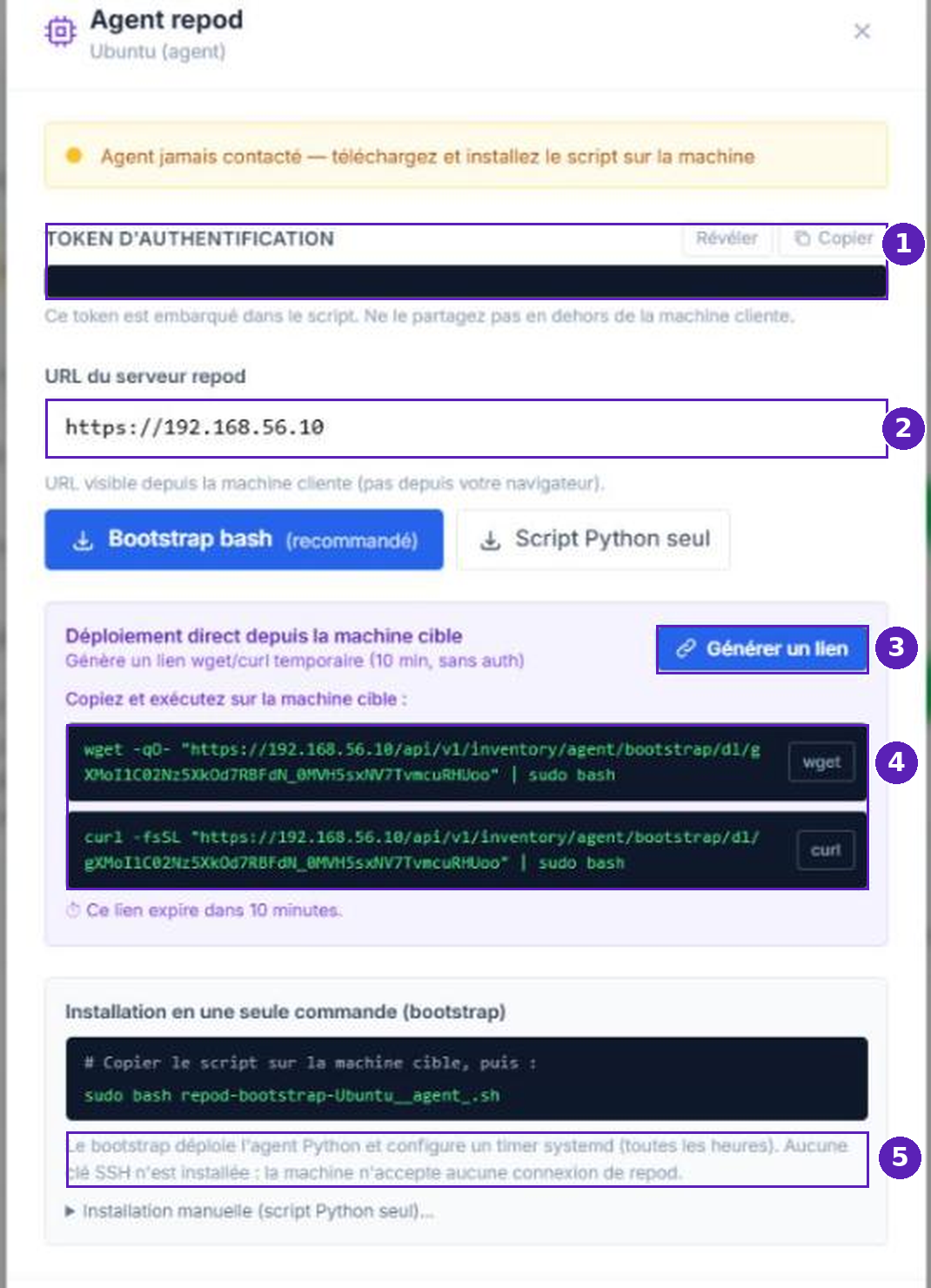
Figure 2 — The token (1), the server address (2), the link button (3), the commands (4) and the note on SSH (5).
- The token (1) identifies this machine to Repod. It is stored hidden; Révéler and Copier show or copy it. It is embedded in the script: do not share it.
- The URL (2) is the one the machine will call. It must be reachable from the machine, not from your browser.
- Click Générer un lien (3). Repod prepares the script and shows a
wgetand acurlcommand (4). The link works for 10 minutes and can be used several times during that time: anyone who has it can download the script, which contains the token. Treat it as a secret. - The note (5) states what the script does not do: it does not install any SSH key. The machine accepts no connection from Repod.
Generating a script or a link renews the token
Each time you generate a script or a link, the machine's token is replaced and the previous one stops being accepted. If you do it for a machine whose agent is already installed, that agent is refused at its next call, until you reinstall it with the new script. Generate a link only when you are about to install.
Step 4 — Install the agent
On the machine, paste the command and run it as an administrator:
Real output:
════════════════════════════════════════
   Repod Agent — Installation bootstrap
════════════════════════════════════════
   Client  : Ubuntu (agent)
   Serveur : https://192.168.56.10

[repod] Étape 1/4 — Déploiement de la clé SSH repod...
[repod] ✓ Mode agent : clé SSH repod non déployée (aucune connexion entrante)
[repod] Étape 2/4 — Installation du script agent Python...
[repod] ✓ Script agent installé dans /usr/local/bin/repod-agent
[repod] Étape 3/4 — Configuration du service systemd...
[repod] ✓ Timer repod-agent activé (toutes les heures, premier envoi dans 5 min)
[repod] Étape 4/4 — Premier envoi d'inventaire...
[repod] ✓ Premier inventaire envoyé avec succès
The script put three things on the machine: the agent in /usr/local/bin/repod-agent, a systemd service and timer (/etc/systemd/system/repod-agent.{service,timer}), and a log folder /var/log/repod-agent/. The service is started with systemd's hardening options (no new privileges, private temporary folder). It sent a first inventory immediately and will send one every hour.
If the first step fails with a certificate error, go back to Step 2. If the last step fails, the timer retries by itself; read the reason with journalctl -u repod-agent --no-pager | tail -20.
Step 5 — Read the result in Repod
Return to Clients and reload.
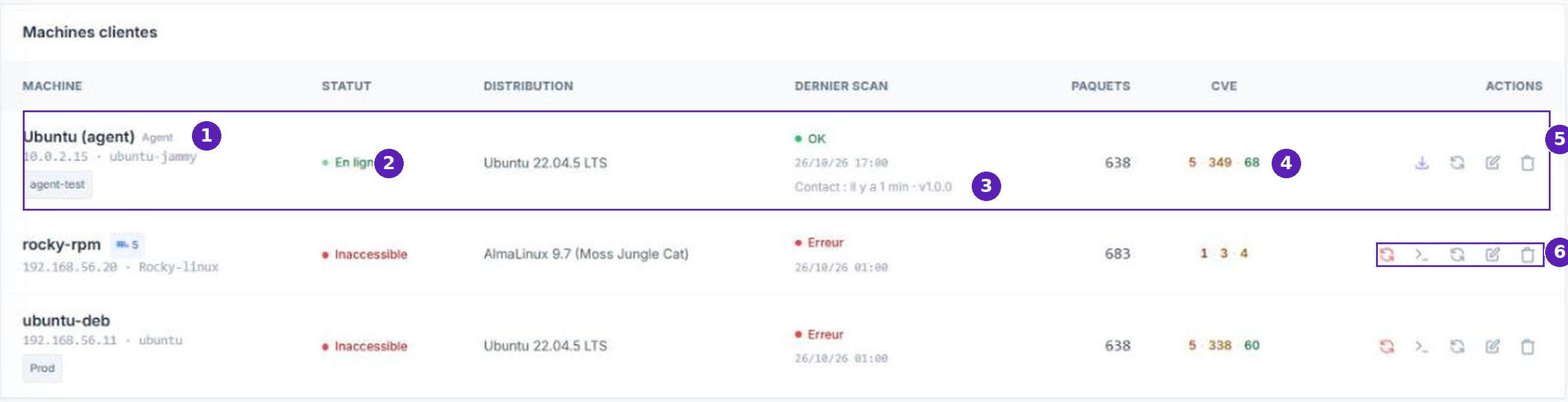
Figure 3 — The agent machine (1), its status (2), the last contact (3), the vulnerabilities (4), its actions (5) compared with an SSH machine (6).
- The row carries the Agent badge (1). The name and the address are the ones the machine reported: here
ubuntu-jammyand10.0.2.15, the address of its network card, not necessarily the one Repod sees. - En ligne (2) means the agent called recently. The line Contact : il y a 1 min · v1.0.0 (3) gives the time of the last call and the agent version.
- The 638 packages were stored and a vulnerability scan started on its own: a notice announced Scan terminé — 430 CVE. The counts (4) are the Critical, High and Medium vulnerabilities, with the same colours as for an SSH machine.
- The actions (5) are fewer than on an SSH machine (6): Tester la connexion SSH and Relancer le scan (shown after an error) are missing, because there is no connection to test. The first action manages the agent. Lancer un scan maintenant re-runs the vulnerability analysis on the packages already received; it does not ask the machine for a new inventory, which only the agent's next call brings.
The machine then behaves like any other for CVE views, decisions and reports. It is not available for remote installation.
Day to day
| To… | On the machine |
|---|---|
| See when the next send happens | systemctl list-timers repod-agent.timer |
| Force a send now | sudo systemctl start repod-agent.service |
| Read what the agent did | tail /var/log/repod-agent/repod-agent.log |
| Reinstall or change the token | Generate a new link in Repod and run it again |
| Remove the agent | The commands below |
sudo systemctl disable --now repod-agent.timer repod-agent.service
sudo rm -f /usr/local/bin/repod-agent /etc/systemd/system/repod-agent.service /etc/systemd/system/repod-agent.timer
sudo rm -rf /var/log/repod-agent
sudo systemctl daemon-reload
Then delete the machine from the Clients list. If you added Repod's certificate in Step 2 only for this purpose, remove it too (sudo rm /usr/local/share/ca-certificates/repod.crt && sudo update-ca-certificates --fresh).
An agent is not a second connection
If a machine is already in the list in SSH mode and you also enrol it as an agent, Repod holds two machines, and the counts double. Choose one mode per machine.
What's next
- Add your first client machine: the SSH path, with remote scans
- Fix a vulnerability on your machines: what to do with the vulnerabilities the agent reports
- Detect configuration drift on a machine: which drift rules work for an agent machine