Bring a package from the internet into your repository
What you'll learn:
- What the Importer page does, and how it differs from uploading a file
- How to search the catalogue for a target distribution and architecture, and how to read the results
- What the dependency panel and the import log tell you, line by line
- How to import a whole list of packages, and what happens when a name does not exist
- What an import group is, and what deleting one does
Time: ~30 minutes (imports run scans: count one to two minutes per package added)
Prerequisites: An uploader, maintainer or administrator account, and an index that has been synchronised at least once, see Keep your package sources in sync. The server needs internet access, or a proxy.
What does this page do?
Linux → Importer copies a package from a public repository (Ubuntu, Debian, AlmaLinux, Alpine…) into your repository, with the dependencies it needs. Each file goes through the same checks as an upload: format, SHA-256 provenance, antivirus, CVE scan under your policy, GPG signature and dependencies. A package that passes is published to the distribution you chose, and your machines can install it with apt, dnf or apk.
Import or upload?
Use Déposer when you have the file (your own build). Use Importer when the package lives in a public repository and you want Repod to fetch, check and publish it. The catalogue you search is Repod's own copy of the public index, so the search does not need internet. The download does.
The page has three tabs: Recherche & Import for one package, Import par lot for a list, and Groupes d'import for the history of what each import brought.
Step 1 — Choose the target first
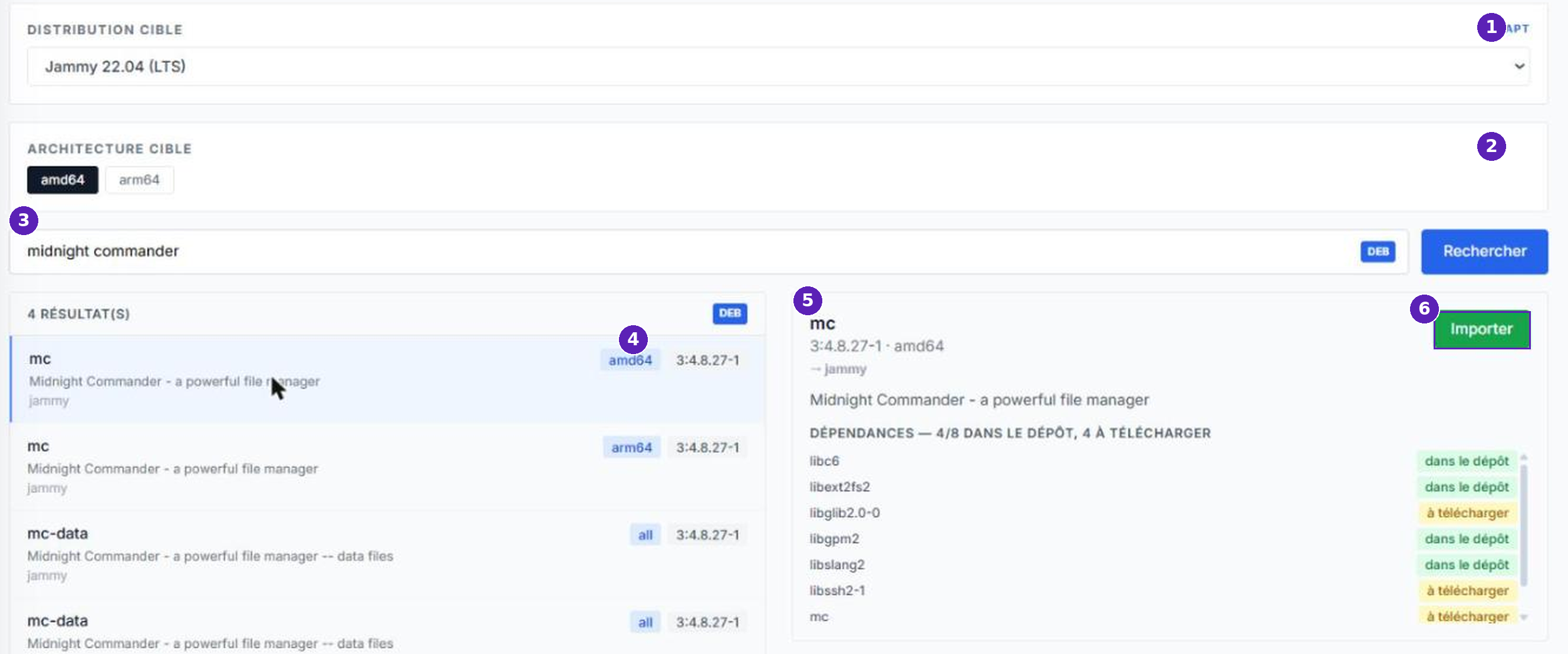
Figure 1 — The distribution (1), the architecture (2), the search (3), a result and its architecture (4), the dependency panel (5) and the Importer button (6).
- Distribution cible comes first because it decides everything else: the format (APT, RPM or APK, shown at the top right of the box), the index that the search reads, and where the package is published. The menu groups distributions by family.
- Architecture cible has two buttons per format (
amd64/arm64for APT,x86_64/aarch64for RPM and Alpine). The first one is the default.
Which distribution do I pick?
The one your machines run. A package imported for jammy is published in jammy only, and a machine on noble will not see it. If you are not sure, look at the Distributions page or at the machine in Machines clientes.
Step 2 — Search
- Type a name, or words from the description (
htop,midnight commander), then Rechercher. The field shows the format in a small tag (DEB).
The search can take several seconds
The catalogue holds the packages of every synchronised source, several million lines in a large installation. The button reads Recherche… until the answer comes back. A short word such as mc matches more lines and takes longer than a precise one.
How do I read the results?
-
Each line gives the name, the architecture (
amd64,arm64orall), the version, the description and the distribution.- The same package can appear twice. Without an architecture filter, you see one line per architecture that the index holds:
mcforamd64and forarm64. A package markedall(data files, scripts) is architecture-independent but appears once per index, somc-datashows up twice. Select the line you want: only that one is highlighted. The Architecture cible buttons decide what is imported, not the line you click. - A red Sécurité tag means the package comes from a security source: it is a fix for a known vulnerability.
- The same package can appear twice. Without an architecture filter, you see one line per architecture that the index holds:
Step 3 — Read the dependency panel
Click a result. The panel on the right appears after a short wait (Résolution des dépendances…).
-
The title reads Dépendances — 4/8 dans le dépôt, 4 à télécharger. The count includes the package itself and its direct dependencies. Each one has a tag:
Tag Meaning dans le dépôt A version of this package already exists in your repository. Nothing to do à télécharger Absent. The import will fetch it A dependency tagged dans le dépôt can still be fetched again: that tag means some version exists, and the import adds the version that the index currently offers, which can be newer. That is how
libtinfo6was added as6.3-2ubuntu0.3next to the0.1already stored.
Why does the log talk about 27 packages when the panel lists 8?
The panel shows the direct dependencies. The import follows them recursively, up to four levels deep, and announces the real total at the start of the log (Arbre résolu : 27 paquet(s)).
Step 4 — Import and read the log
- Click Importer. The button reads Import en cours… and a black Logs d'import box fills in as the work progresses. Keep the page open until it reads Terminé.
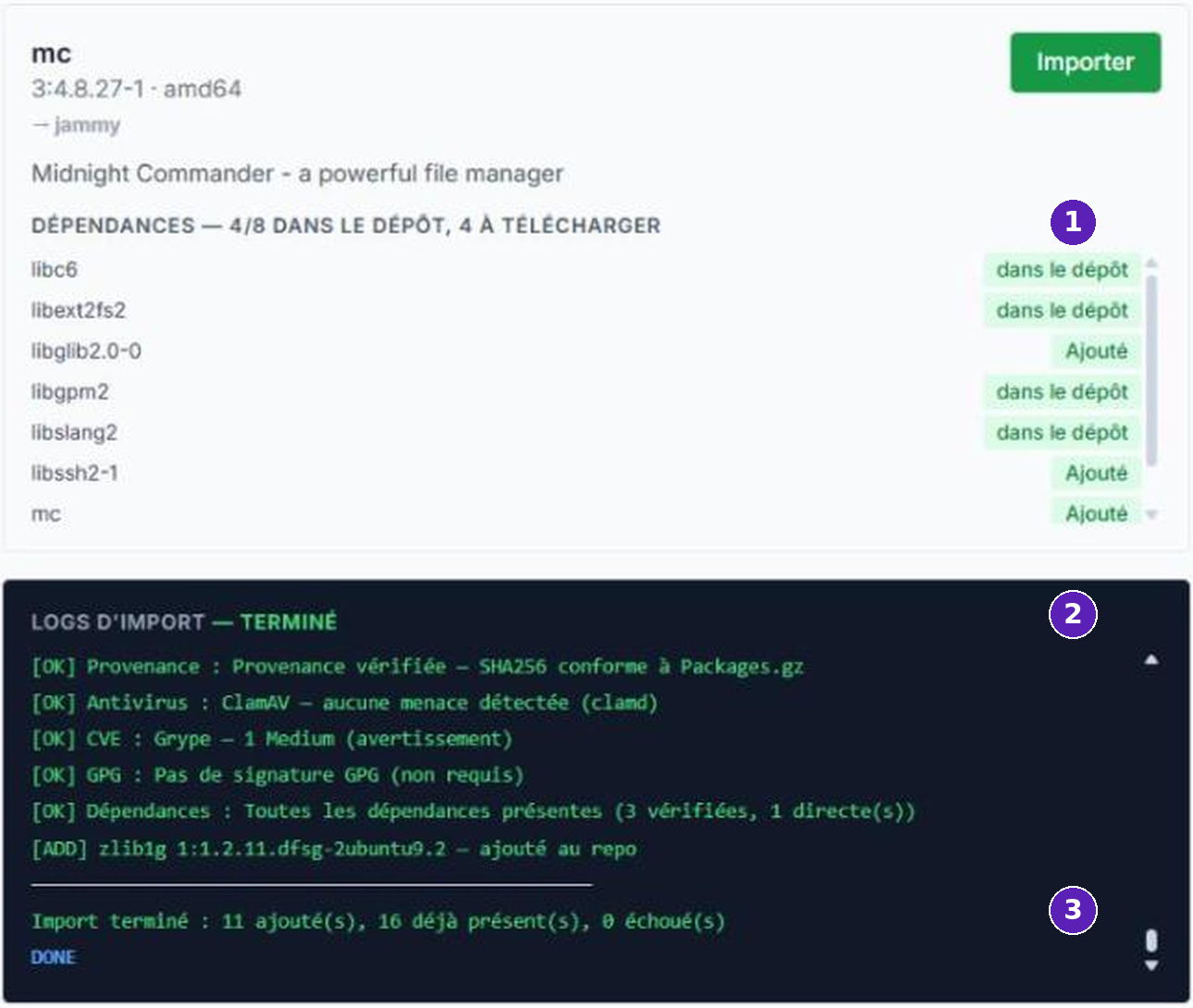
Figure 2 — The dependency tags after the import (1), the log (2) and the summary (3).
- The tags of the panel change to Ajouté (green), En attente RSSI (orange, see below), Échec (red) or dans le dépôt.
-
The log shows what happened, in order:
Line Meaning Arbre résolu : N paquet(s)…/Trouvé N paquet(s) — X déjà présent(s), Y à téléchargerThe size of the job [SKIP] nom — déjà dans le repoThis exact version was already stored. Nothing downloaded [DL] nom...Download starts, then one line per check [OK] Format,Provenance,Antivirus,CVE,GPG,DépendancesThe six checks. CVE states what the scan found, for example 1 Medium (avertissement)[FAIL] Dépendances : 2 dépendance(s) manquante(s)A warning, not a block. The dependencies are imported right after. The package is still added [ADD] nom version — ajouté au repoPublished ⏳ nom version — en attente révision RSSI (non publié)Stored but not published: your CVE policy sent it to review [CVE-BLOQUÉ] nom — …Your policy blocks this severity. Not stored [FAIL] nom — …The package failed a blocking check or the download -
The last line summarises: Import terminé : 11 ajouté(s), 16 déjà présent(s), 0 échoué(s). A package that went to review counts as added, so check Paquets afterwards.
How long does it take?
Each package added is scanned by ClamAV and by Grype. Count one to two minutes per package: the import above, 11 packages, took about a quarter of an hour. Packages already in the repository cost nothing.
A package in review is not installable
The decision is made on the Décisions CVE page, see Decide what happens to a package that failed a CVE check. A dependency in review also keeps the package that needs it from installing.
Step 5 — Import a list of packages
Open Import par lot to import several packages with the same target.
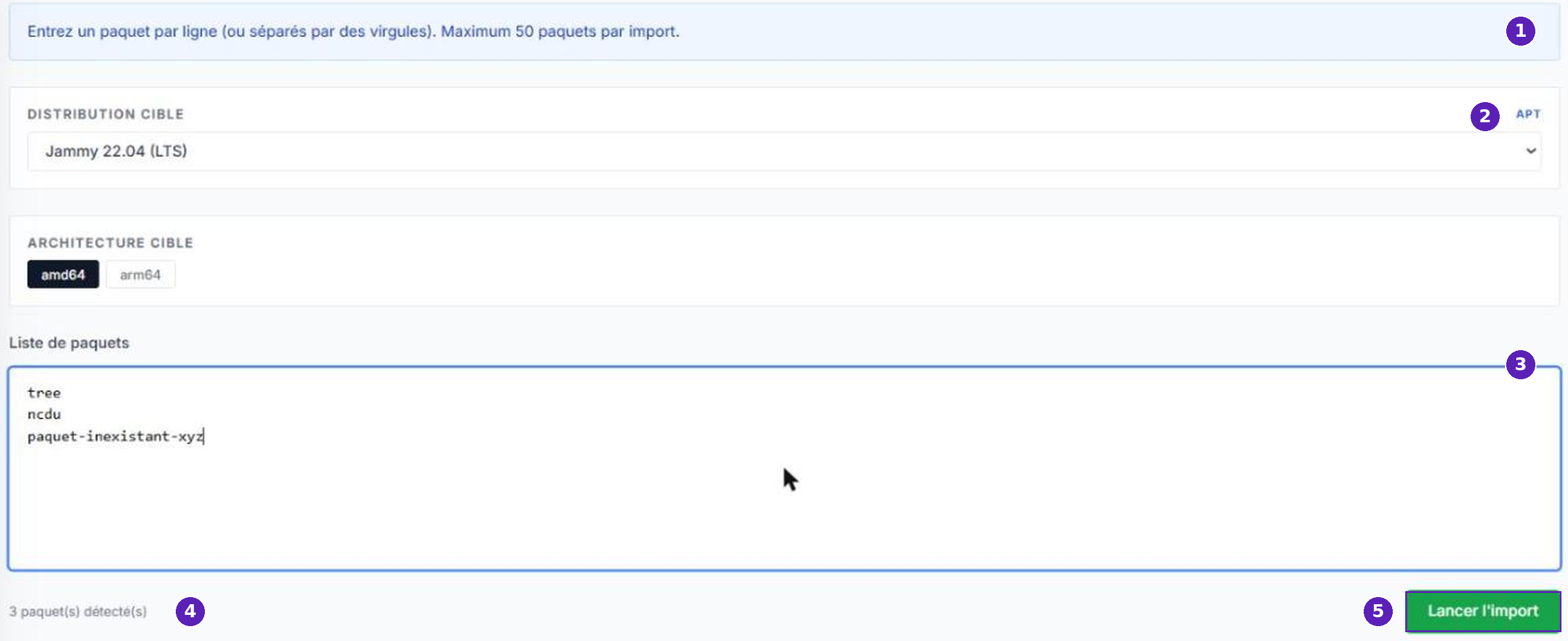
Figure 3 — The instruction (1), the target (2), the list (3), the counter (4) and the launch button (5).
- Enter one name per line, or separated by commas. 50 packages at most per import. The counter under the box says how many names it detected.
- Choose the distribution and the architecture, as in Step 1. They apply to the whole list.
- Click Lancer l'import. The log runs through the packages one after another, each under a
=== Import de nom ===header, with the same lines as in Step 4.
What happens with a name that does not exist?
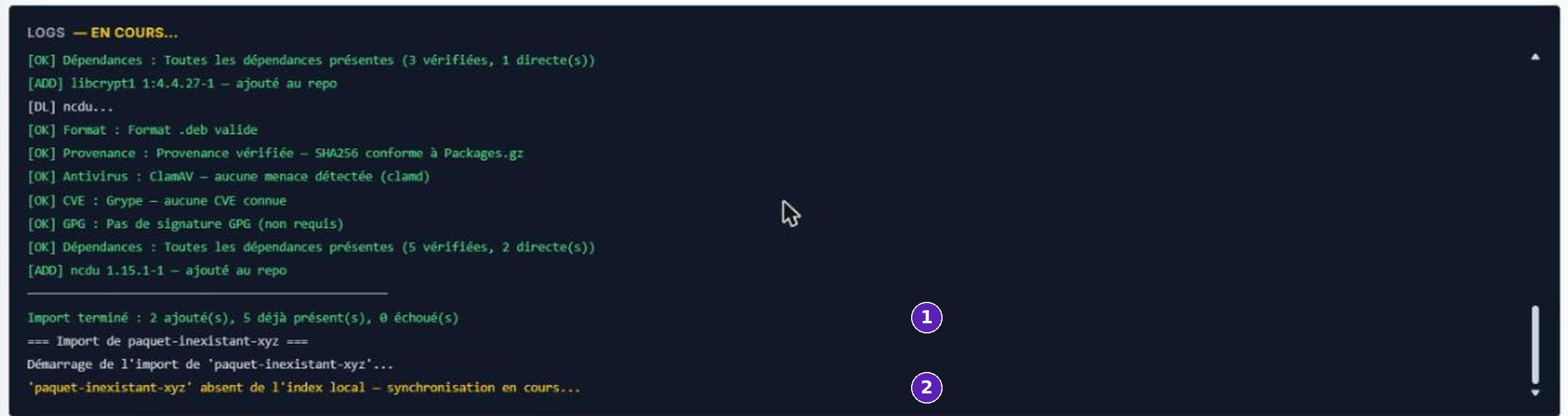
Figure 4 — The summary of the packages already done (1) and the unknown name (2).
- The packages before it are not affected: their summary is complete.
- For a name that is not in the local catalogue, Repod assumes the catalogue may be out of date and synchronises the sources before giving up. This can take more than ten minutes if the index is old. The log prints synchronisation toujours en cours (20 s)… every twenty seconds so that you know it is alive. At the end, either the import resumes, or you get introuvable dans l'index local, même après synchronisation.
Check the spelling before you launch a long list
A typo costs a full synchronisation, and the list waits for it. Search the names one by one first if you are not sure of them. Keep your sources fresh and the case never arises, see Keep your package sources in sync.
Step 6 — Find what an import brought
Groupes d'import keeps, for each package you imported, a copy of the files that this import downloaded.
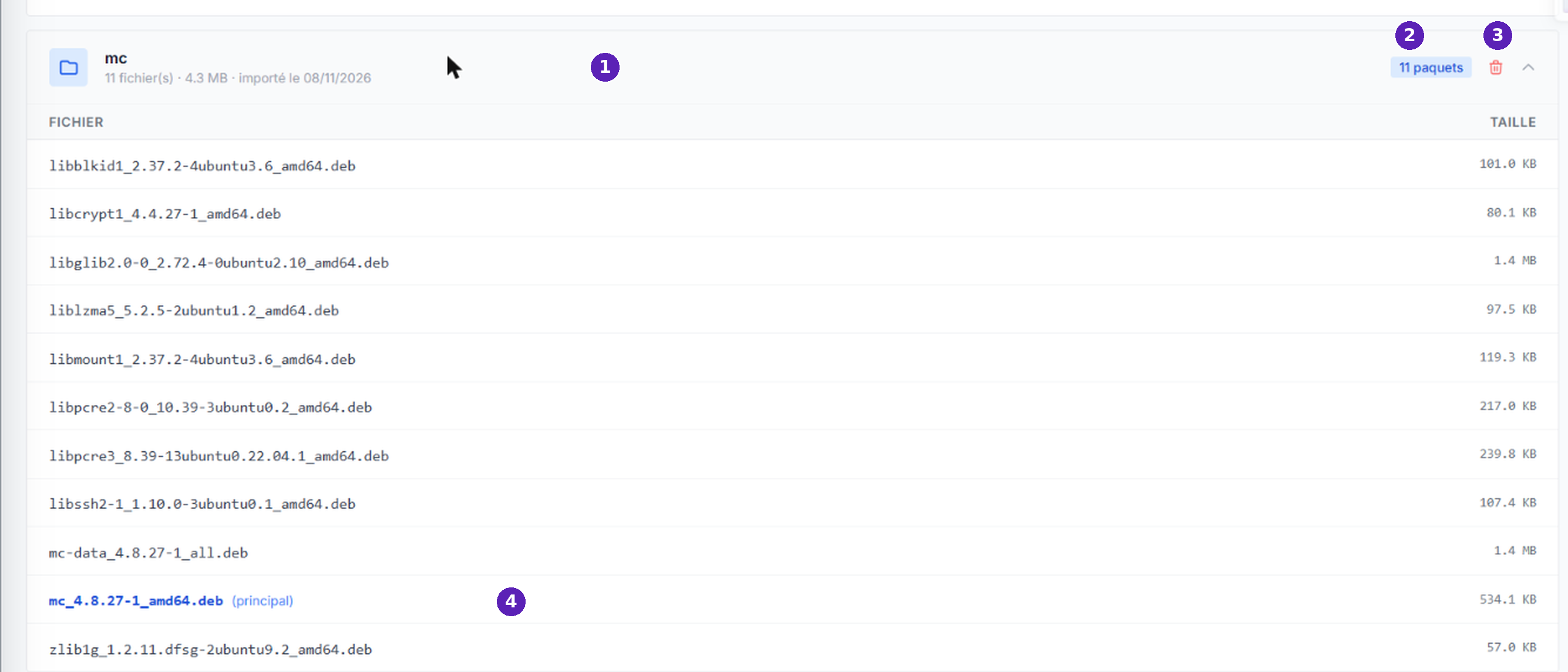
Figure 5 — The group (1), its number of packages (2), its trash icon (3) and the main package (4).
- A group is named after the package you asked for. The line gives the number of files, their total size and the date.
- The badge counts the files: here the package and its ten dependencies.
- The trash icon deletes the group.
- In the list, the main package is flagged (principal), the others are its dependencies.
Deleting a group does not remove the packages from the repository
It only deletes the copies kept for this history, in the import folder. The packages stay published and installable. To remove a package from the repository, use Paquets, see Find, inspect and manage the packages in your repository. Only an administrator can delete a group, and the confirmation says so: Supprimer le groupe et tous ses fichiers ?
The tab only lists .deb files: imports for RPM and Alpine are in the repository, but do not appear here.
Step 7 — Check the result
Open Linux → Paquets, search the name, and look at the status: Disponible means published. If you see En révision, go to Décisions CVE. Then try the installation from a machine, see Install a package and its dependencies from a client machine.
Troubleshooting
| Symptom | Cause and fix |
|---|---|
| The search says Index non synchronisé | The catalogue is empty. Synchronise the sources from Sources, see Keep your package sources in sync |
| Aucun résultat | The name is not in the index of this distribution. Check the spelling, then check that the index is recent: a package published upstream last week is missing from an index synchronised last month |
| The screen shows network error during a long import | The connection was cut by a proxy after minutes of silence. Recent versions print a progress line every 20 s to prevent it. On an older version, synchronise the sources first, then import again. The work already done is kept |
| An import fails with a 403 or a 404 on the distribution | You lack the role (uploader or above) or your account has no access to this distribution, see Manage users, roles and groups |
| [CVE-BLOQUÉ] | Your CVE policy blocks the severity found. Adjust the policy or choose another version, see Set your security policy before the first package |
| A package is En attente RSSI | It waits for a decision, see Decide what happens to a package that failed a CVE check |
| Every import goes to review with Grype — réponse illisible | The vulnerability database is too old. See the troubleshooting table of Find, inspect and manage the packages in your repository |
An arm64 or aarch64 import does not offer packages that are all |
Known limitation. The architecture filter is exact, so architecture-independent packages are not matched. It is being addressed separately |
What you've accomplished
You can now bring a package and its dependencies from a public repository into your own, read the log to know what was published and what waits for a decision, import a list in one go, and tell an import group from the repository itself.
Next steps