Customise the notification e-mails
What you'll learn:
- Which e-mails Repod sends, and which template drives each of them
- How to change the subject and the body of a template, and preview it before saving
- What variables you can use, and what happens if a template is broken
- How to go back to the shipped version
Time: ~10 minutes
Prerequisites: An administrator account, and SMTP e-mail already configured in Paramètres, section Notifications email (SMTP), with recipients chosen for the events you want.
What is sent, and from which template
Repod sends an e-mail when something needs a person: a package is waiting for review, a decision is taken, decisions are about to expire, a fix becomes available, or a technician escalates a vulnerability. Each of these e-mails is built from a template that you can edit.
| Template | Sent when |
|---|---|
| pending review | A package needs a security decision after an import |
| security decision | A decision is recorded on a package |
| sla overdue | Decisions have expired or are about to |
| patch available | The target version of an "upgrade required" decision is now in the repository |
| escalation | A technician escalates a vulnerability to the security officer |
The page lists four more templates, default, itsm error, itsm resolved and scheduler job failed. No notification uses them yet: you can edit them, but nothing sends them today. The shared layout (the dark header and the footer) is added around every template automatically and is not editable from this page.
Step 1 — Open a template
Open Administration → Templates email.
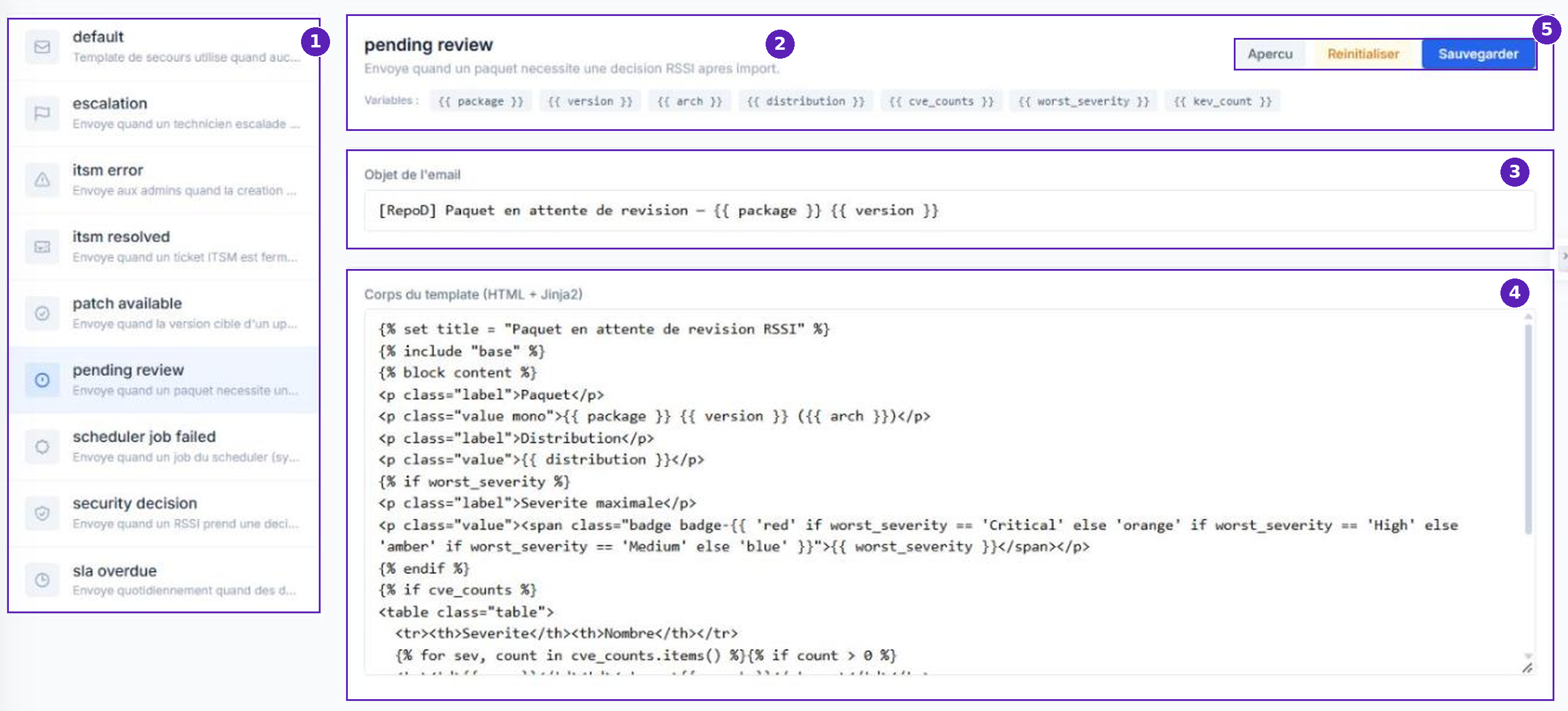
Figure 1 — The list (1), the description and variables (2), the subject (3), the body (4) and the buttons (5).
- Click a template in the list (1). The selected one is highlighted.
- The header (2) says when it is sent and lists the variables available, such as
{{ package }}or{{ cve_counts }}. Click a variable to copy it. Use only these: a variable that the event does not provide stays empty. - Objet de l'email (3) is the subject. It can use the same variables:
[RepoD] Paquet en attente de revision — {{ package }} {{ version }}. Line breaks are removed. - Corps du template (4) is the body, in HTML with Jinja2 instructions:
{{ value }}to insert a value,{% if %}and{% for %}for conditions and loops.
The first line, {% set title = "..." %}, sets the heading shown in the dark header of the e-mail. Leave the include "base" and block content lines as they are: the layout is added for you.
Step 2 — Preview, then save
Click Apercu (5). The page renders the template with sample data (an openssl package, a few vulnerabilities) and shows the result under the editor, exactly as an e-mail client would.
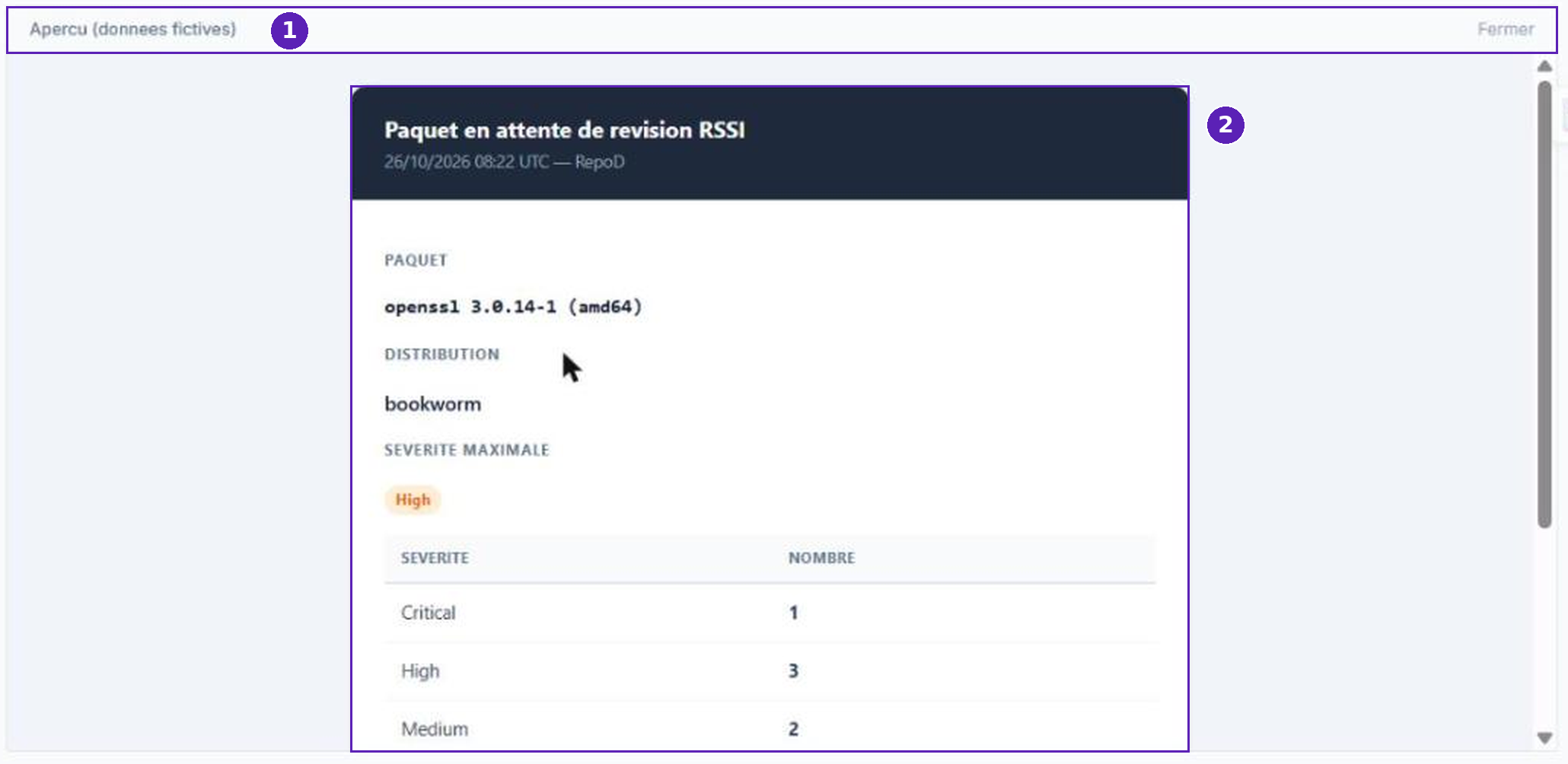
Figure 2 — The preview panel (1) and the rendered e-mail (2).
The preview uses what is currently in the editor, saved or not. Change a label, click Apercu again and look at the result: nothing is sent and nothing is stored until you click Sauvegarder. If the template has an error, the preview says so (Erreur de rendu du preview) instead of showing a broken e-mail.
Click Sauvegarder to store the template. The next e-mail of that kind uses it, with its new subject.
Reinitialiser puts back the shipped body and subject, after you confirm. Use it when an edit goes wrong.
What protects you from a mistake
- Values are escaped. A package name or a justification that contains HTML (
<script>…) appears as text in the e-mail, never as code. - A broken template never loses a notification. If the saved template cannot be rendered (a syntax error, an unknown construct), Repod writes the error in the logs and sends the shipped template instead. Fix it from this page with the preview.
- Templates cannot run code. Jinja2 runs in a restricted mode: a template that tries to reach Python internals is refused and replaced by the shipped one.
- Each organisation has its own templates on a multi-tenant (SaaS) deployment: changing yours never changes another organisation's e-mails.
Test the whole chain once
The preview shows the template, not the delivery. After a change, use the e-mail test in Paramètres → Notifications email (SMTP) to check that messages leave, then trigger a real event (for example, import a package that goes to review) to see your template in your mailbox.
What's next
- Walk through a CVE remediation: the events that these e-mails announce
- Set your security policy before the first package: what decides that a package goes to review
- Manage users and roles: who can edit the templates, and who receives the e-mails