Deploy a container image on your machines
What you'll learn:
- How the Déploiement de conteneurs page works, and what it needs before the first deployment
- How to save the launch settings of an image once, and reuse them at every redeployment
- What the simulation, the confirmation and the deployment each do on the machine
- What can stop a deployment, and what the page cannot undo
Time: ~15 minutes
Prerequisites: A maintainer or administrator account, an image already in the registry (see Manage your container image registry), and a machine reachable over SSH with Docker installed.
What this page is for
Once an image is in the registry, you often want it running on some machines. This page does it for you, over SSH: it pulls the image on the machine and starts the container with the settings you saved. It works like the package installation (see Install a package on a machine from the interface): a simulation first, then your confirmation, then the real deployment.
Two rules protect you:
- An image that is not cleared cannot be targeted. An image waiting for a security decision, quarantined, blocked or flagged upgrade required is refused (see Walk through a CVE remediation).
- Only images that went through Repod's checks. An image pushed with
docker pushhas no check on record, so it is refused until it has been scanned.
Machines in agent mode cannot receive a deployment
The agent only reports to Repod; Repod never sends it commands. Those machines appear greyed out in the list and are refused if you try to target them (see Enrol a machine with the agent, no SSH).
Step 1 — Choose the image
Open Conteneurs → Déploiement.
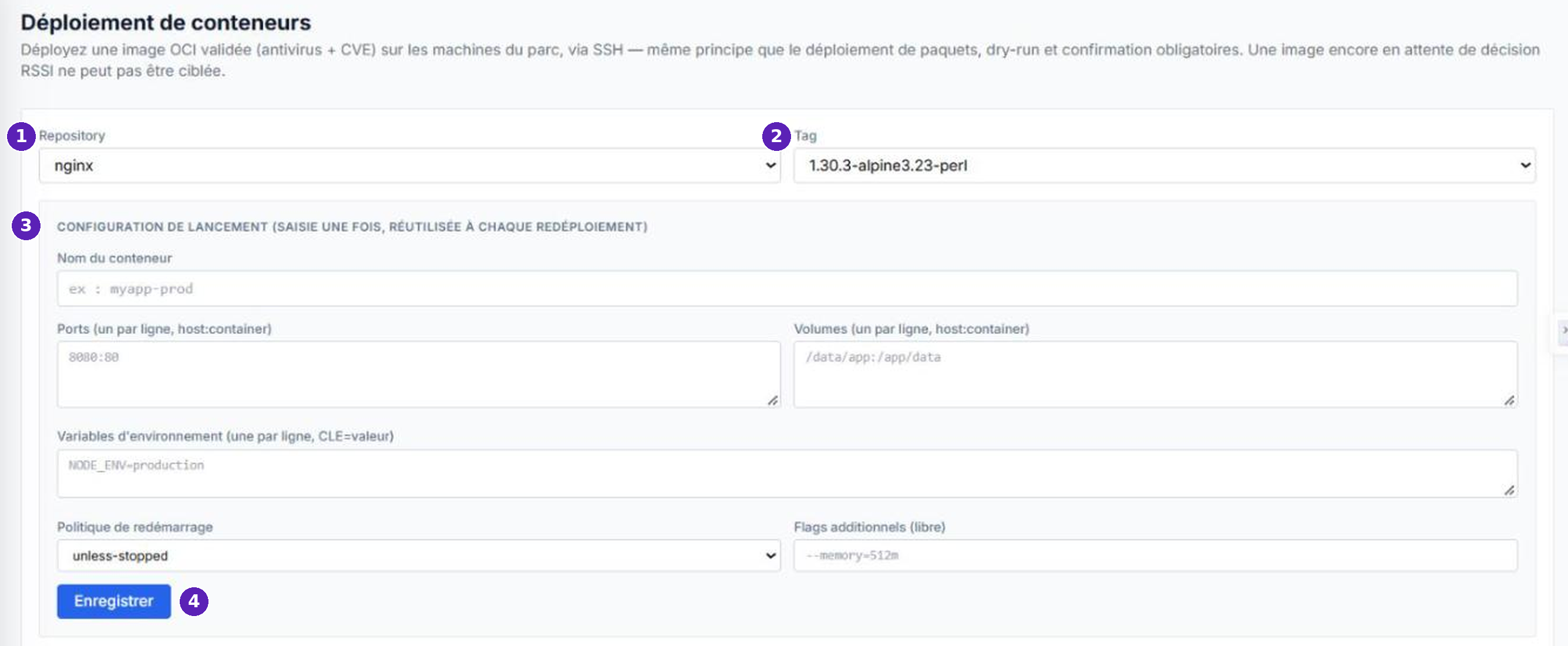
Figure 1 — The repository (1), the tag (2), the launch settings (3) and the Save button (4).
- Choose the repository (1), then the tag (2) to deploy. Only the tags that exist are offered.
- The launch settings (3) appear. They are saved per repository, once, and reused at every redeployment: you only choose a different tag next time.
Step 2 — Save the launch settings
Fill in the block (3) and click Enregistrer (4). This step is required: without saved settings, Repod refuses to create the deployment.
| Field | What to enter |
|---|---|
| Nom du conteneur | The name the container will have on the machine, for example myapp-prod. It is required |
| Ports | One per line, host:container, for example 8080:80 |
| Volumes | One per line, host:container, for example /data/app:/app/data |
| Variables d'environnement | One per line, KEY=value |
| Politique de redémarrage | unless-stopped (default), always, on-failure or no |
| Flags additionnels | Free extra options for docker run, for example --memory=512m |
Once saved, the button reads Mettre à jour. Editing the settings does not touch any running container: they apply at the next deployment.
Do not put secrets in the environment variables
The values are stored in clear with the repository settings and shown to maintainers who open this block. Pass secrets another way on the machine.
Step 3 — Choose the machines and start
Scroll down.
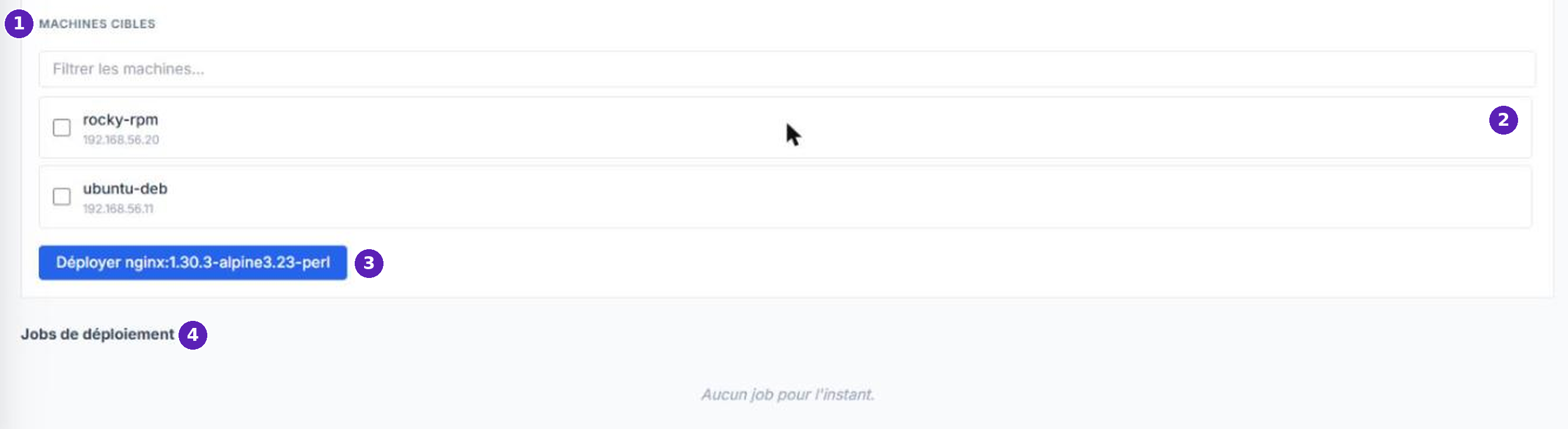
Figure 2 — The target machines (1), the checkboxes (2), the Deploy button (3) and the jobs (4).
- Tick the machines (2) in the list (1). Use the filter if the fleet is large.
- Click Déployer followed by the image and the tag (3). A job is created and appears under Jobs de déploiement (4).
Before the job is created, Repod checks that the image is cleared, that settings are saved, that every chosen machine exists and is not in agent mode, and that the maintenance windows of the chosen machines overlap at some point (see Restrict deployments to maintenance windows). If they never overlap, it tells you immediately instead of waiting forever. If a window exists but is not open yet, the job waits for it.
Step 4 — Read the simulation and confirm
A job goes through these steps:
| Step | What happens |
|---|---|
| En attente d'une fenêtre de maintenance | The window of a machine is not open yet |
| Simulation (pull + comparaison) | See below. No container is changed on the machine |
| Attente de confirmation | The simulation is finished: you decide |
| Déploiement en cours | The container is replaced |
| Terminé | The container runs the expected image |
The simulation does three things on each machine. It checks that Docker is there. It signs in to the registry with a temporary token that can only download, never upload. And it pulls the image and compares it with the container already running. If the container already runs exactly this image, the machine is marked à jour and nothing needs to change.
When the job reaches Attente de confirmation, a blue card says the simulation is finished. Click a machine to open its detail and Afficher la sortie brute to read what happened. If it looks right, click Confirmer. To stop, click Annuler: no container has been changed yet (the simulation only downloaded the image).
Step 5 — What the deployment does
After you confirm, on each machine Repod:
- signs in again and pulls the image (the layers are already there from the simulation);
- stops and removes the container with the same name, if there is one;
- starts the new container with your saved settings;
- checks that the container exists, is running, and runs exactly the image that was just pulled.
If the check fails, the machine is shown in error with a message, and the raw output is available.
There is no automatic rollback
The old container is removed before the new one starts. If the new one fails to start, the machine is left without that container until you fix the cause and redeploy, for example with the previous tag. Deploy first on one machine of lesser importance.
By default, up to two jobs run at the same time; the next ones wait in line, and the card shows their position.
Read the history
Finished jobs are folded under Historique. A job shows who requested it, when, and how many machines are finished out of the total. The bin icon removes a finished job from the history; it does not touch the machines.
What this page does not do
- It does not install Docker. If Docker is missing on the machine, the simulation reports it and stops.
- It does not use docker-compose. One container per repository and per machine, from the saved settings.
- It does not roll back (see above).
- It cannot reach machines in agent mode.
- It does not check the health of your application, only that the container runs the expected image.
What's next
- Manage your container image registry: bring an image in and check it
- Install a package on a machine from the interface: the same workflow for packages
- Restrict deployments to maintenance windows: control when a deployment may run