Keep your package sources in sync
What you'll learn:
- What the package index is, and why it can be out of date while everything looks fine
- What the nightly synchronization refreshes, and what it leaves alone
- How to synchronize everything, a family of sources or a single source, and follow it live
- How to add a third-party repository, and how the scheduled mirror differs from the synchronization
Time: ~20 minutes
Prerequisites: You are signed in as admin. The server can reach the internet, directly or through a proxy (see Keep your data fresh, Step 3).
What the index is
Repod does not copy the whole Ubuntu or Debian archive. It keeps a local catalogue, called the index, of what each upstream repository offers: names, versions, architectures, dependencies. Several features read it:
- the search and the dependency resolution of the Importer page,
- the availability of a fix on the Conformité parc page,
- the update proposals of the Inventory page.
Three things are easy to mix up:
| What it is | Where | |
|---|---|---|
| Index | The catalogue of what exists upstream. Light, refreshed by the synchronization | Sources → Synchronisation |
| Mirror | The download and validation of the packages themselves, on a schedule | Sources → Mirroir |
| Depot | The packages published by Repod, which your machines install | Paquets |
An out-of-date index does not break anything that is already published. It means Repod no longer knows about what appeared upstream since, so the fix for a new vulnerability cannot be found or offered.
Step 1 — Notice a stale index
On the Paquets page, a banner appears when the index is old.

Figure 1 — The stale index banner.
- The message. How long ago the oldest source was synchronized, and what it risks: a recently published dependency may not be found during an import.
- Synchroniser. Starts the synchronization of all sources, exactly like Tout synchroniser on the Sources page. Read Step 4 before you click it.
Step 2 — Read the Synchronisation page
Open Linux → Sources. The first tab is Synchronisation.
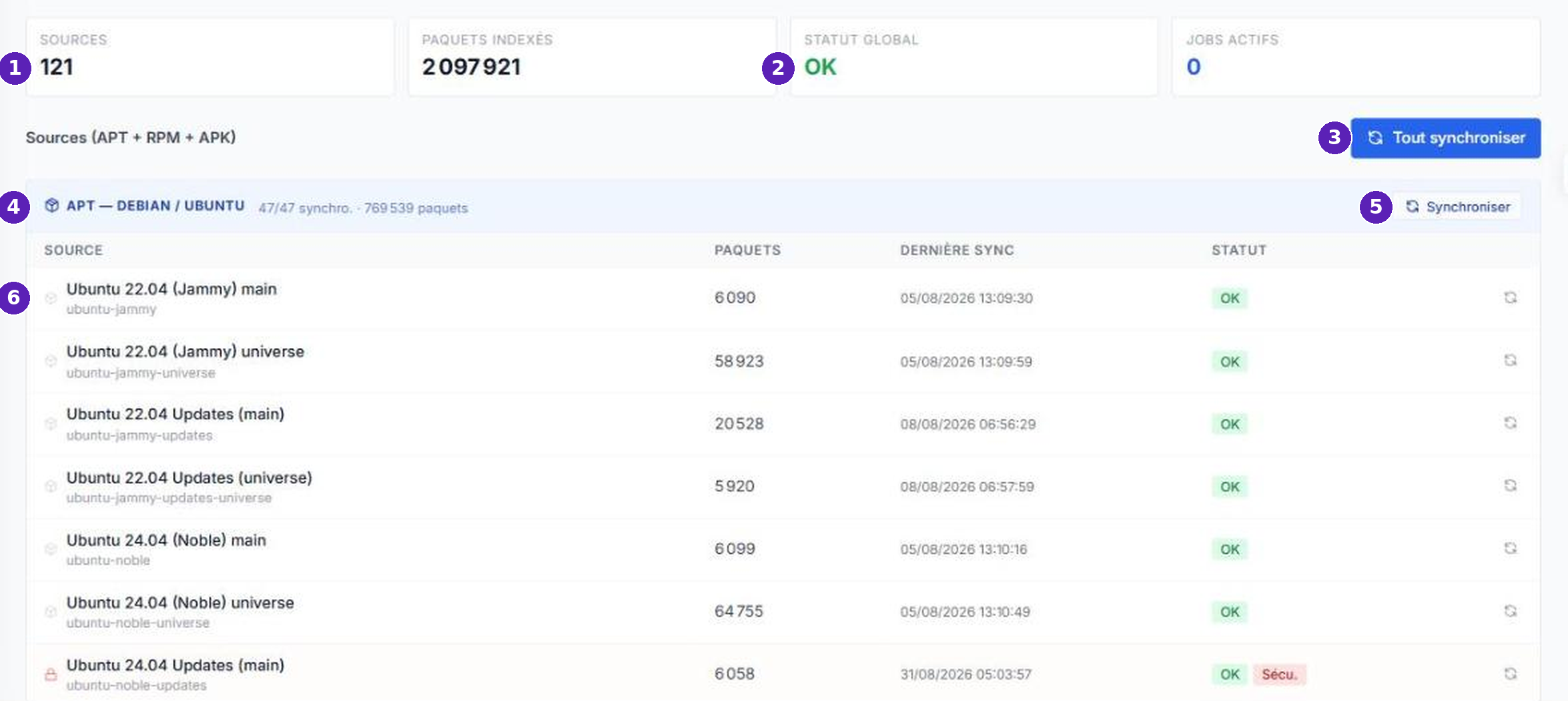
Figure 2 — The Synchronisation tab.
- Key figures. The number of sources (here 121, for APT, RPM and APK together), the number of indexed packages (about 2.1 million) and the active jobs.
- Statut global. OK means the last synchronizations succeeded. It does not mean the data is recent: the figure said OK while the index was 71 days old. Always read the date, not only the status.
- Tout synchroniser. Synchronizes every source. See Step 4 for the cost.
- A family. One block per format: APT (Debian and Ubuntu), then RPM, then APK. The header shows how many sources are synchronized and their package count.
- Synchroniser (in the header). Synchronizes only that family.
- A source. Its name and identifier, the number of packages, the date of the last synchronization and its status. The icon on the right synchronizes this source alone.
Step 3 — Understand what the nightly job refreshes
Compare the dates in the table.
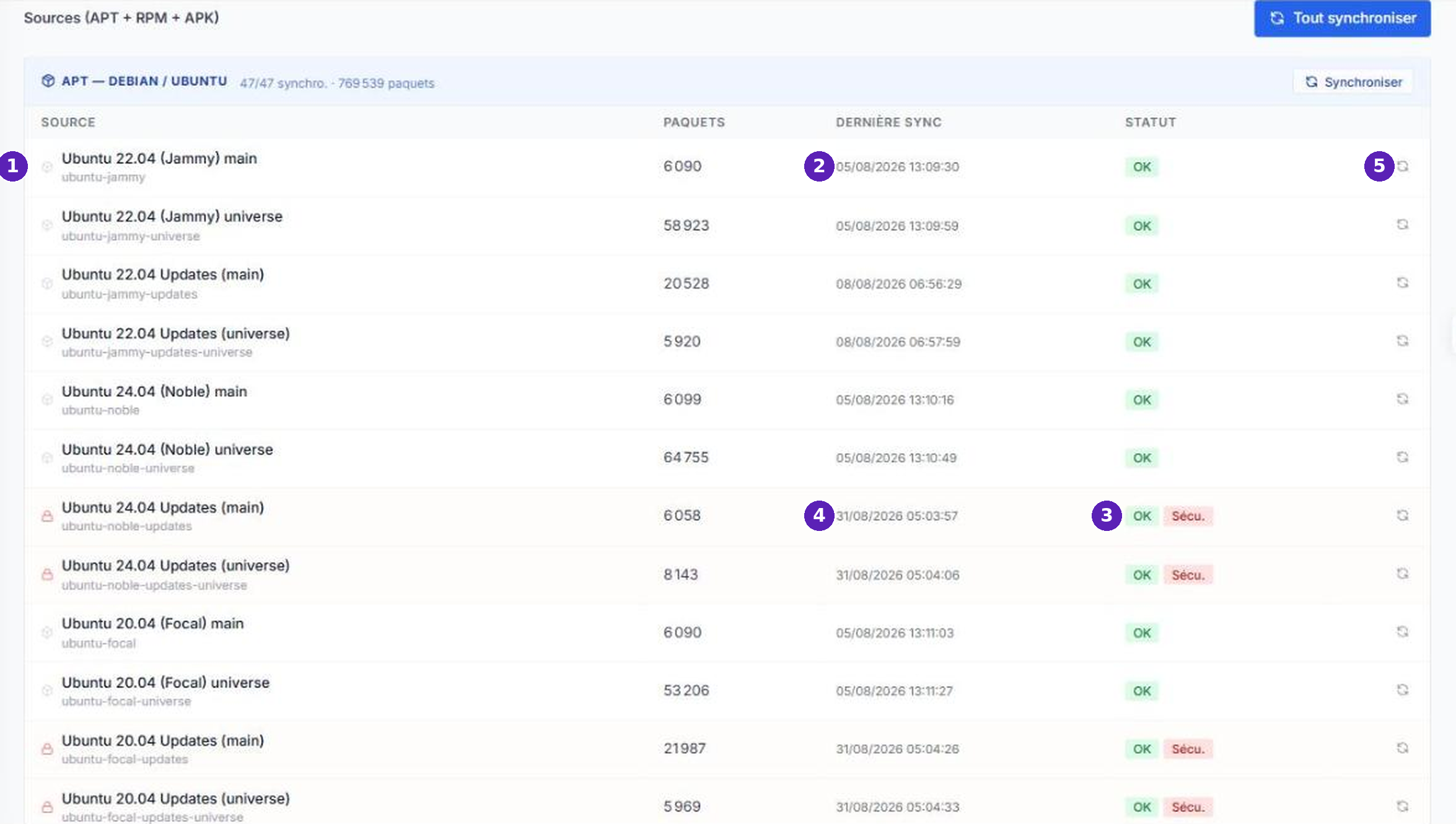
Figure 3 — Base sources and security sources.
- A base source (
main,universe). The full catalogue of a release. - Its date. Here early August: nothing refreshed it since.
- A security source. Marked Sécu. with a padlock: the security updates of a release.
- Its date. Later, at the end of August.
- The icon. Starts a synchronization of this source alone.
The nightly synchronization (see Keep your data fresh, Step 1) refreshes only the sources marked Sécu. that are enabled, plus the vulnerability databases (Grype, KEV, EPSS). The base catalogues change slowly and are large, so they are refreshed only when you ask.
A missed night is not replayed
If the server is off or suspended at the scheduled time, that run is skipped and the next one happens the following night. On a server that is not always on, the indexes can stay old for weeks: check the dates here, and run a synchronization by hand after a long stop.
Step 4 — Run a synchronization
Click the icon of one source. We chose ubuntu-jammy, the base catalogue of Ubuntu 22.04.
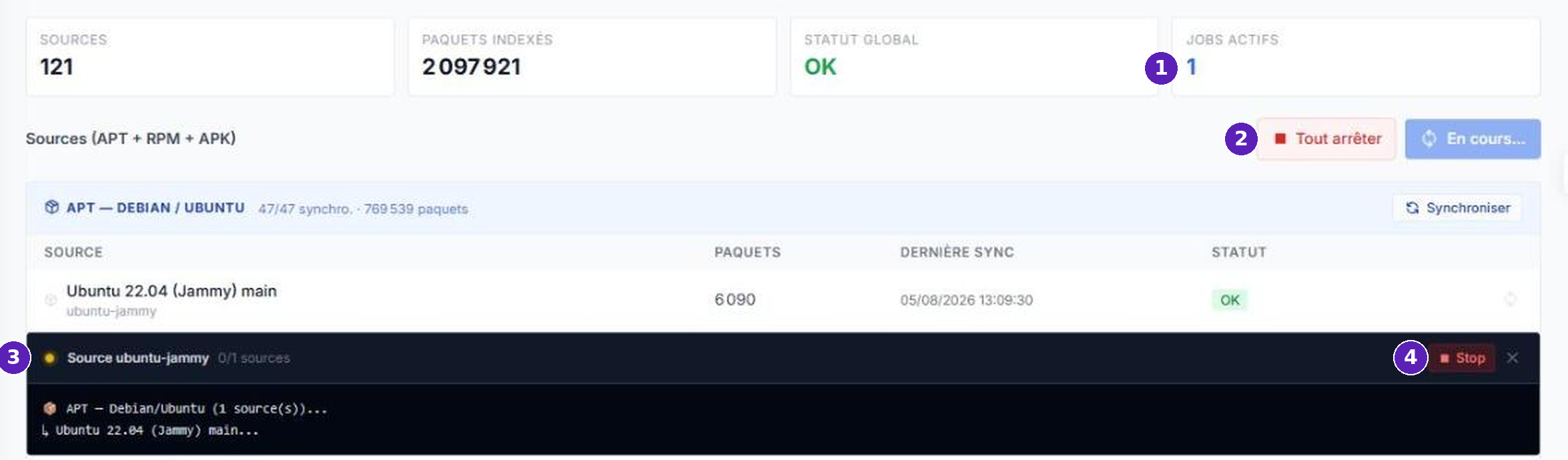
Figure 4 — A synchronization in progress.
- Jobs actifs. Goes from 0 to 1 while it runs.
- Tout arrêter. Stops everything that is running.
- The job panel. Opens under the source, with its name and progress (
0/1 sources). - Stop. Stops this job only.
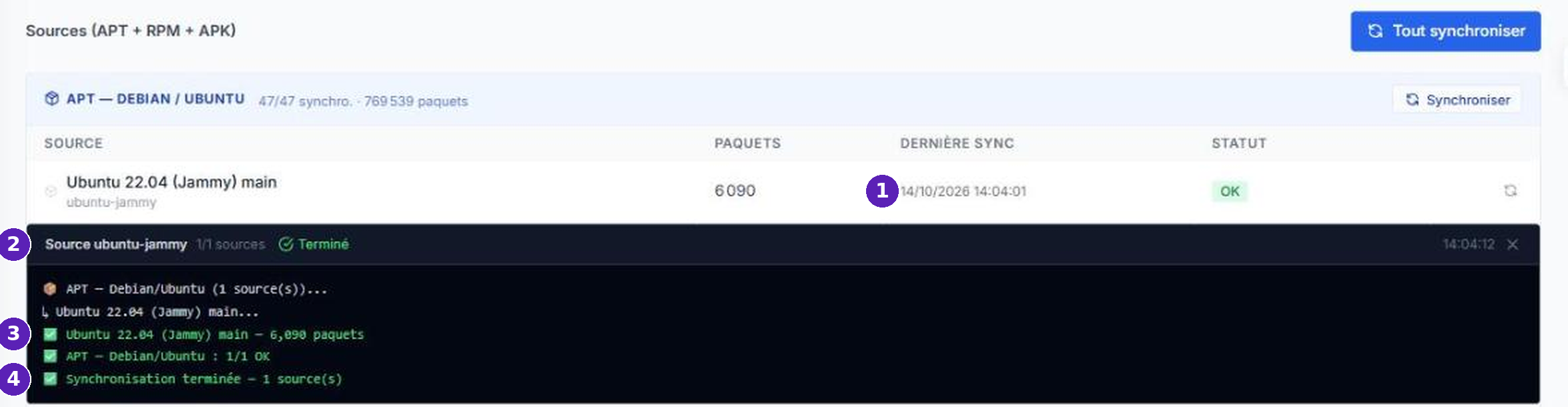
Figure 5 — The synchronization is complete.
- The date. Updated to the current time, with the same number of packages (6,090) because nothing changed upstream for this catalogue.
- Terminé. The job finished.
- The log. The source, the number of packages indexed, then the family result.
- The last line. "Synchronisation terminée — 1 source(s)".
This one took less than twenty seconds. Repod also authenticates the index: it verifies the GPG signature of the repository's InRelease file, then checks that the checksum of the package list matches the one declared in it.
Think before you click \"Tout synchroniser\"
It downloads the index of every enabled source. For Debian and Ubuntu that is from a few to several tens of megabytes per source, and some RPM indexes are very large (hundreds of megabytes once unpacked). The Synchroniser button of the banner in Step 1 does the same thing. Prefer the family button, or the single source you need, and make sure the disk and the connection can take it. A disabled source is skipped (see Keep your data fresh, Step 2).
If a source fails, it shows an error instead of OK. The usual causes are no internet access and a proxy that is not configured.
Step 5 — Add a third-party repository
Open the Sources personnalisées tab to add a repository that Repod does not know, such as Docker CE or HashiCorp.
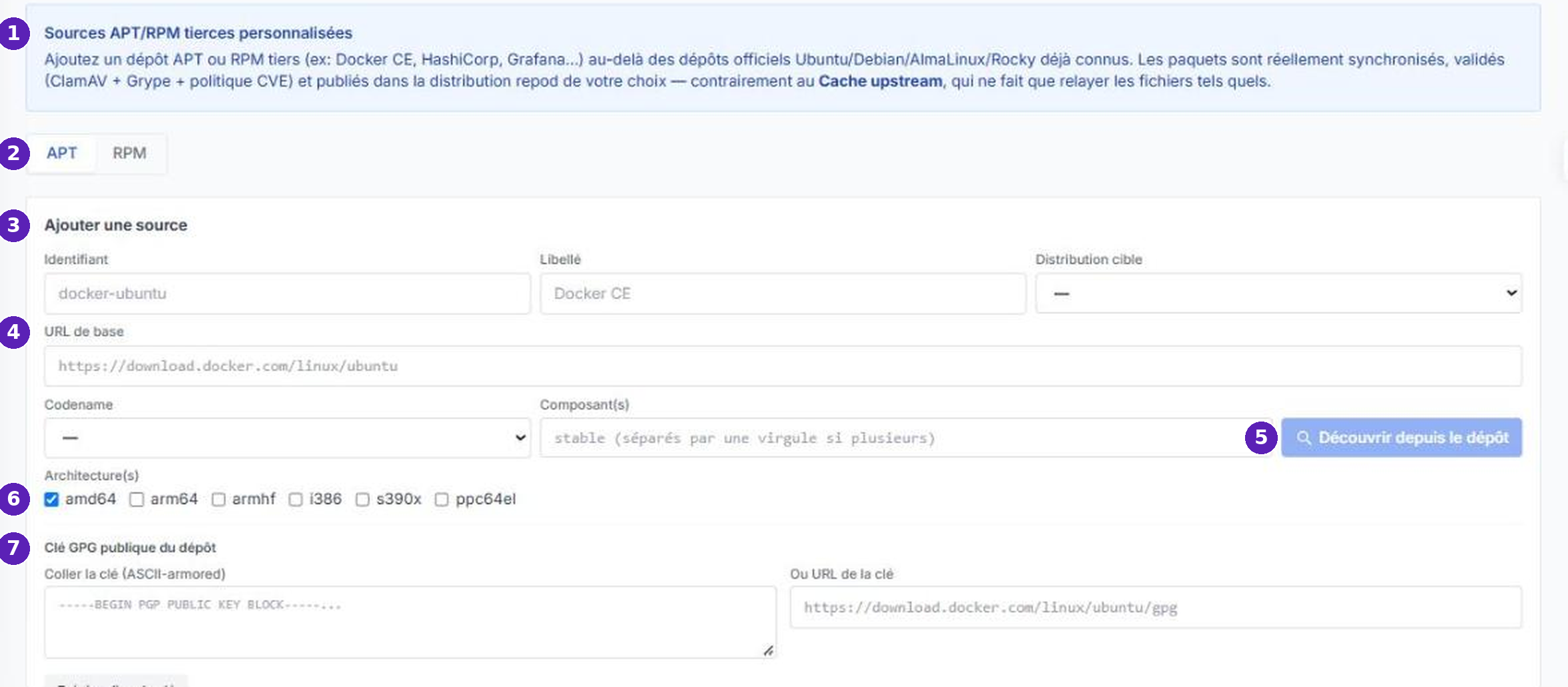
Figure 6 — Adding a third-party source.
- The explanation. The packages that are actually synchronized are validated (ClamAV, Grype and your CVE policy) and published in the Repod distribution you choose. This is different from Cache upstream, which only relays files as they are.
- APT / RPM. The format of the repository.
- Identifiant, Libellé, Distribution cible. A short identifier, a display name, and the Repod distribution that will receive the packages.
- URL de base. The address of the repository, for example
https://download.docker.com/linux/ubuntu. - Découvrir depuis le dépôt. Reads the repository to suggest its codenames and components.
- Architecture. The architectures to index,
amd64by default. - Clé GPG publique. The repository's public key, pasted or fetched from a URL. Repod uses it to verify the repository's signature.
Step 6 — Do not confuse it with the mirror
The Mirroir tab is another job.
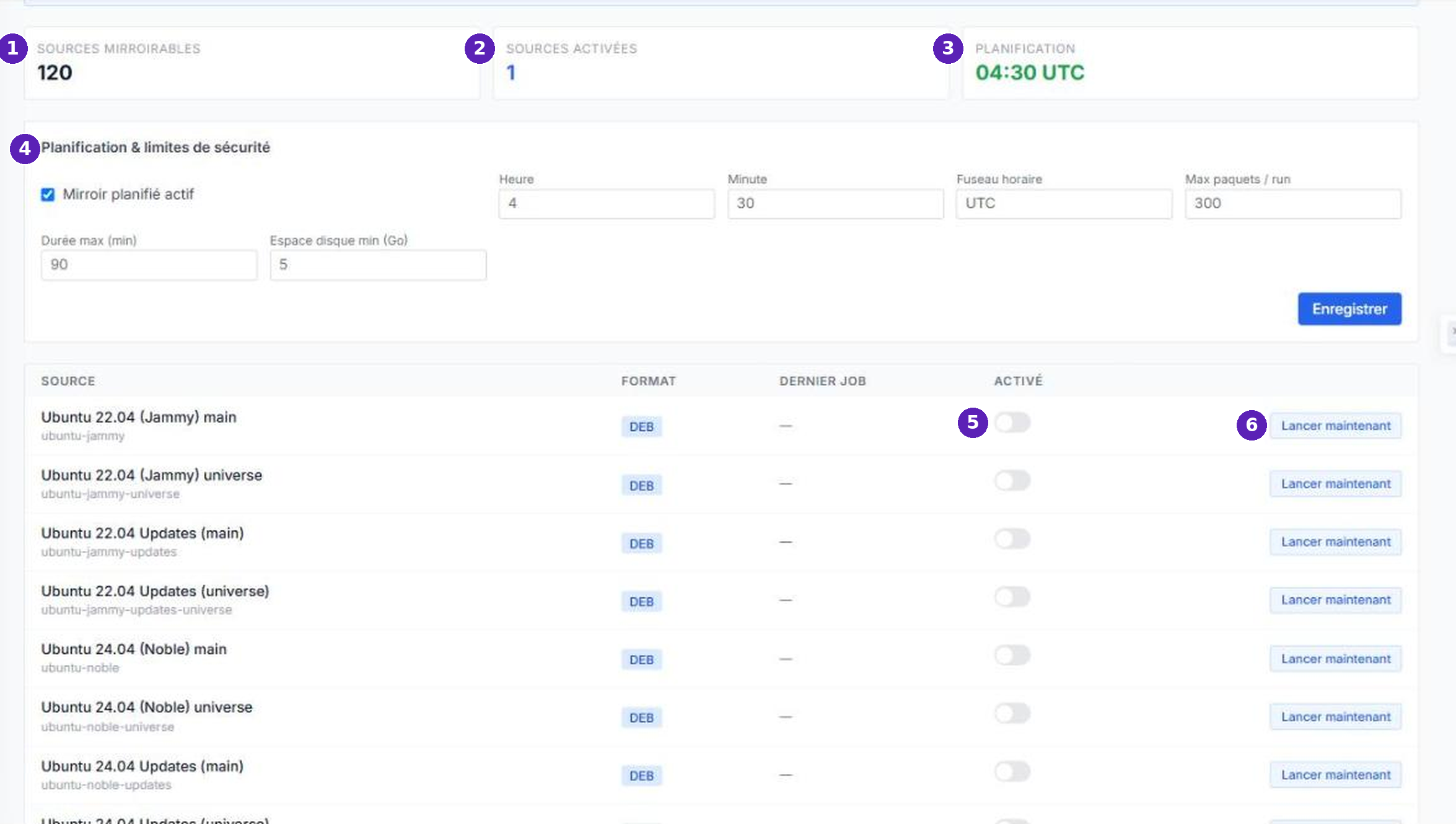
Figure 7 — The mirror.
- Sources miroirables. 120 sources can be mirrored.
- Sources activées. Only 1 is switched on here: the mirror is opt-in.
- Planification. The time of the scheduled run, here 04:30 UTC.
- Planification & limites de sécurité. Time, time zone, Max paquets / run (300), Durée max (90 minutes) and Espace disque min (5 GB). A run stops when it reaches any of these limits.
- Activé. Selects the sources to mirror.
- Lancer maintenant. Runs the mirror of that source immediately.
A mirror downloads the packages of the enabled sources, runs each through the full validation, and publishes them. It uses disk, bandwidth and the scanners. See Schedule the recurring scans and mirrors.
A mirror run slows down your uploads
The mirror and your own uploads share the same scanners. While a mirror is running, a package you upload waits for its turn, and the pipeline can look stuck for many minutes. Choose a quiet time for the schedule, and cancel the run if you need to upload urgently.
What's next
- Keep your data fresh and your platform running: the nightly schedule and the proxy
- Schedule the recurring scans and mirrors: the mirror and the other jobs
- Fix a vulnerability on your machines: where the index decides whether a fix can be found
- Deposit your first package in the interface: what a mirror run can delay