Check a Dockerfile's packages before you build
What you'll learn:
- What the Dockerfile analyzer checks, and what it leaves alone
- How to paste a Dockerfile and read the three statuses: available, importable, unknown
- How to import the missing packages in one click, with the same checks as any import
- The limits to know before you trust a result
Time: ~10 minutes
Prerequisites: An account that can upload (uploader, maintainer or administrator), and an index of public packages already synchronised (see Keep your package sources in sync).
What the analyzer is for
A container image is built once and does not change afterwards: the packages must be baked in at docker build time. If your Dockerfile installs a package that Repod does not hold, the build either pulls it from the internet (unchecked) or fails (if the network is closed). The analyzer lets you find out before the build which packages Repod has, which it could fetch, and which it cannot find.
It is a static analysis: it reads the text of the Dockerfile and queries Repod's data. It builds nothing, installs nothing, and imports nothing until you ask it to.
It understands the three installers:
| Installer | Recognised commands |
|---|---|
| APT | apt-get install, apt install |
| RPM | dnf install, yum install, microdnf install |
| APK | apk add |
Step 1 — Paste the Dockerfile
Open Conteneurs → Dockerfile. Paste your file into the text area, or drag the file onto it.
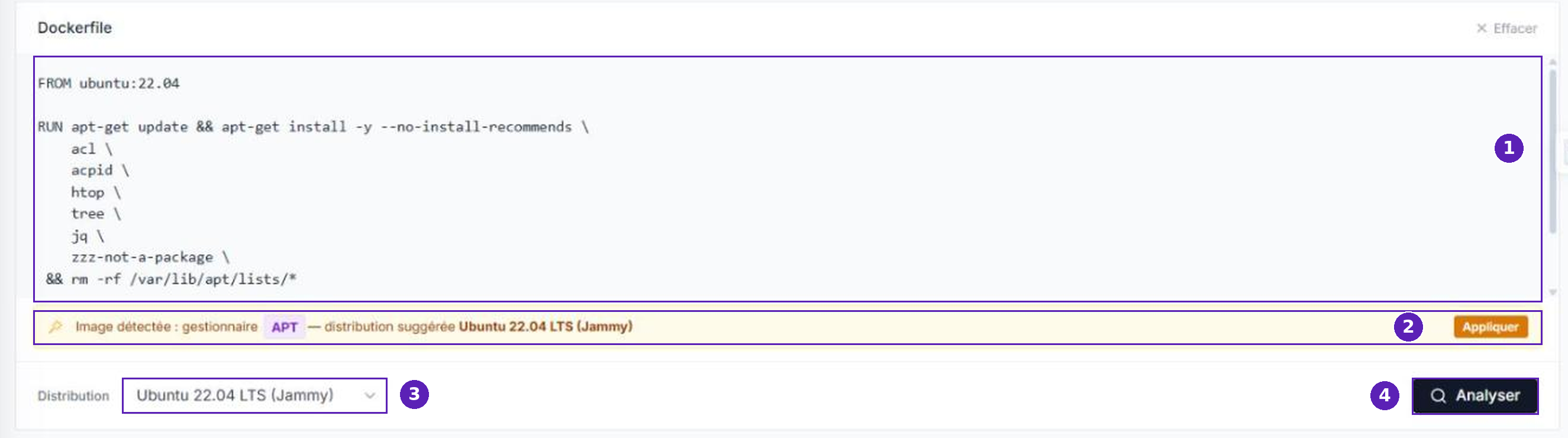
Figure 1 — The pasted Dockerfile (1), the detected image (2), the target distribution (3) and the Analyze button (4).
As soon as there is text, the page detects the base image and shows a banner: Image détectée : gestionnaire APT, distribution suggérée Ubuntu 22.04 LTS (Jammy) (2). Two rules apply:
- The install commands win. A
RUN apk add ...means Alpine, whatever the image is called. This is whyFROM mycompany/app:v2still works. - The
FROMline gives the release:ubuntu:22.04is Jammy,almalinux:9is AlmaLinux 9,alpine:3.19is Alpine 3.19. An older Debian (Bullseye, Buster) is mapped to Bookworm, the only Debian release Repod hosts.
Click Appliquer to use the suggestion, or choose the distribution yourself in the selector (3). The choice matters: the analysis is done for that distribution. The list contains the distributions Repod really hosts: Ubuntu and Debian codenames, AlmaLinux and Rocky 8 and 9, Fedora, and Alpine 3.18 to 3.21.
Step 2 — Analyze
Click Analyser (4). The result appears below in about a second.
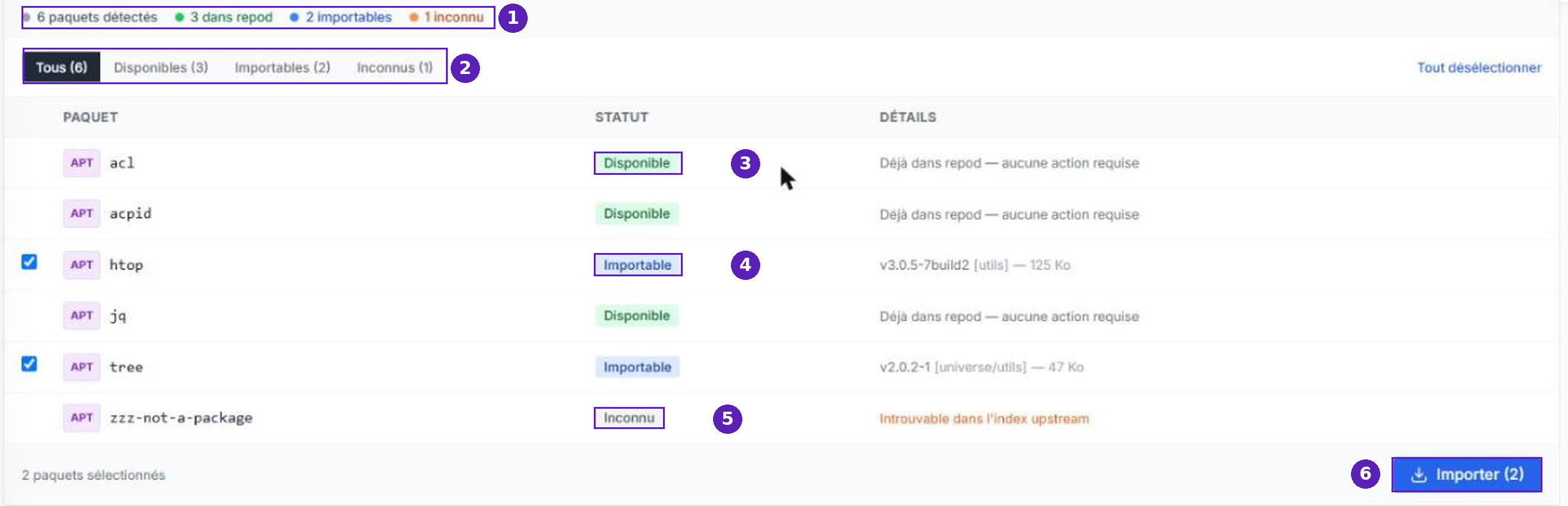
Figure 2 — The summary (1), the filter tabs (2), an available package (3), an importable one (4), an unknown one (5) and the Import button (6).
The summary line (1) counts the packages found in the file. Each row has one of three statuses:
| Status | Meaning | What to do |
|---|---|---|
| Disponible (green) | The package is published in the distribution you chose | Nothing |
| Importable (blue) | Not in Repod, but present in the public index you synchronised. The row shows the version, the section and the download size that will be fetched | Tick it and import |
| Inconnu (orange) | Not in Repod and not in the public index for this release | Check the name: a typo, a package from another distribution, or a source you have not added |
The tabs (2) filter the table. Importable packages are ticked by default.
Available means available for this release
A package published only in Noble does not count as available for a Jammy Dockerfile, and the version shown for an importable package is the one of the chosen release (for Jammy, tree 2.0.2-1, not the newer Noble version). Choose the right distribution before you read the result.
Step 3 — Import what is missing
Keep the importable packages ticked and click Importer (6). Repod downloads each package and runs it through the same pipeline as any other import: antivirus scan, vulnerability scan, and your security policy. A package that breaches the policy lands in the review queue instead of being published (see Set your security policy before the first package). One batch can hold up to 50 packages.
When the import finishes without an error, the page marks the imported rows Disponible. That label does not say whether the package was published or held for review: open Décisions CVE to see whether any of them is waiting for a decision, because a package in review is not available to your build until it is accepted.
Then point your build at Repod's repository and run docker build. The client-side setup is in Client Setup.
Limits to know
- Only the packages written in the file are listed. Their dependencies are not expanded by the analysis. A package's dependencies are resolved by the installer during the build, from the repository.
- Pinned versions are ignored.
apt-get install curl=7.81.0-1is checked ascurl: the analysis does not tell you whether that exact version is available. - Only install commands are read. A package added by
pip,npm, a downloaded.debor a script is not seen. - For RPM and Alpine, the upstream version shown is not scoped to the release. Availability is checked per distribution for every format, but the upstream lookup of an importable RPM or APK package can show a version from another release when several are indexed.
- A file larger than 500 KB is refused, and so is an empty one.
What's next
- Keep your package sources in sync: the public index that "importable" relies on
- Set your security policy before the first package: what happens to an imported package that breaches the policy
- Push your first container image: the registry side of containers