Decide what happens to a package that failed a CVE check
What you'll learn:
- Why a package ends up waiting on the Décisions CVE page, and how to read the queue
- How to read the vulnerabilities of one package before you decide
- What each of the four decisions does, with the real result on a Debian package and an npm package
- How to follow your decisions, and what happens when one expires
Time: ~20 minutes
Prerequisites: A maintainer or administrator account to decide (an auditor can read the page but cannot decide), and at least one package waiting for review. A package waits when your CVE policy sends it to Révision: see Set your security policy before the first package.
How a package gets here
When you upload or import a package, Repod scans it. Your CVE policy says what to do for each severity: let it through, block it, or send it to review. A package sent to review is stored but not published: apt, pip, npm or docker pull cannot see it. It waits for a person to decide. That is what this page is for.
This page decides about a package in the repository, before it is published. Vulnerabilities found on a machine that already runs a package are handled on another page, see Follow patch decisions and escalations.
Step 1 — Read the queue
Open Sécurité → Décisions CVE.
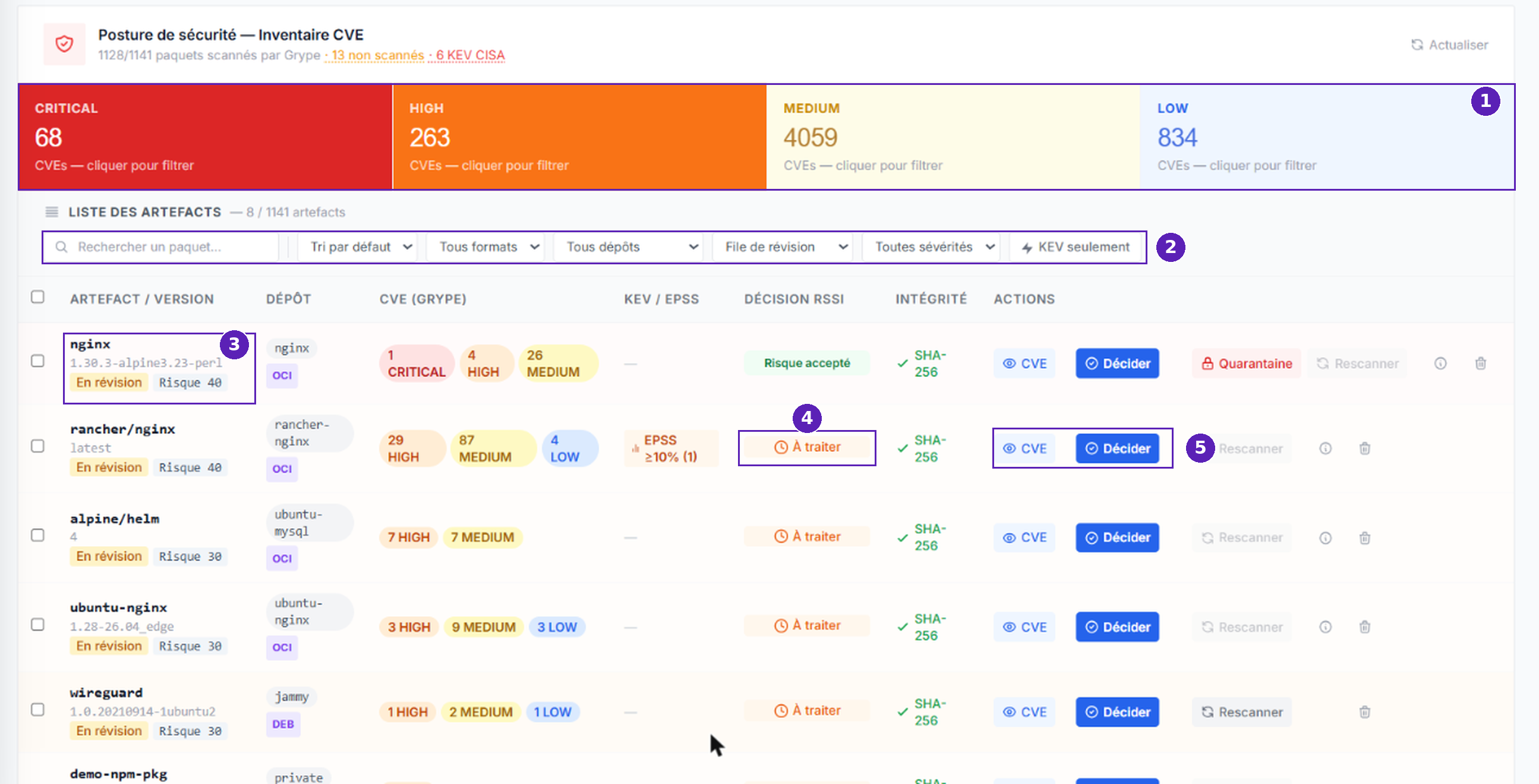
Figure 1 — The severity tiles (1), the filters (2), an artefact in review (3), its decision status (4) and its actions (5).
- The tiles count the CVEs of the whole repository by severity. Above them, the page says how many packages were scanned, how many were not, and how many CVEs are in the CISA list of actively exploited vulnerabilities (KEV). Click a tile to filter the list by that severity.
- The filters narrow the list. The decision filter starts on File de révision: only the packages waiting for a decision. The other values are Toutes décisions, Sans décision, Décision prise, SLA expirant and Quarantaine. The count above the list (8 / 1141 artefacts here) follows the filter.
- Each line gives the name and version, the format and distribution, and En révision with a Risque score. The score combines the severity, the KEV and EPSS data, and how many of your machines have the package installed. A higher score is more urgent.
- Décision RSSI reads À traiter while nobody decided.
-
The actions on the right:
Button What it does CVE Opens the list of vulnerabilities (Step 2) Décider Opens the decision window (Step 3) Quarantaine Puts the package in quarantine at once. Asks you to click a second time to confirm Rescanner Runs the scan again. Greyed out for Maven, PyPI and npm packages, and for a container image that was never published Trash icon Deletes the package from the repository, after a confirmation. The checkboxes on the left delete several at once
An EPSS ≥10% label in the KEV / EPSS column means at least one CVE has a 10% or higher estimated probability of being exploited.
Step 2 — Read the vulnerabilities
Click CVE on a line.
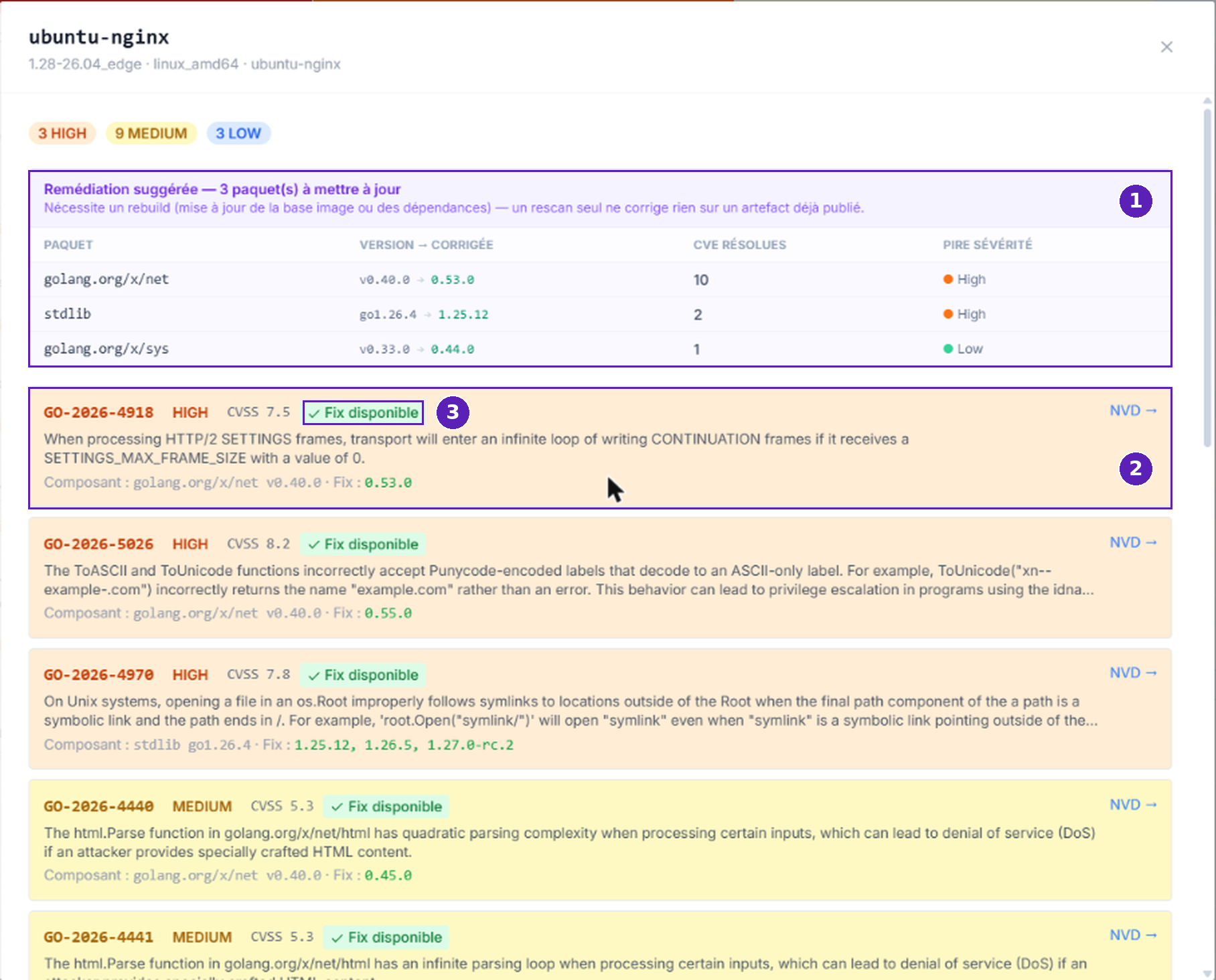
Figure 2 — The suggested remediation (1), one vulnerability (2) and its fix status (3).
- Remédiation suggérée appears when a fix exists upstream. It groups the CVEs by component: which component to update, to which version, and how many CVEs that solves. It also reminds you that a rescan alone fixes nothing on a package that is already stored: a fixed version has to be built and imported.
- Each card gives the identifier, the severity, the CVSS score when known, the description, the affected component and a link to the NVD.
- The chip says whether a fix exists: Fix disponible with the fixed versions, Pas de fix, or Fix inconnu. The last one also appears for vulnerabilities that the publisher decided not to fix.
Step 3 — Decide
Click Décider. The window repeats the severities, and warns you with a red banner if a CVE is in the KEV list and with an orange one if the EPSS is high. Then you choose one of four actions. The justification is mandatory: it is the written reason that the audit keeps.
These decisions change the real state of the repository
Accepting publishes the package to your machines. Rejecting quarantines it. Read the description under each action, it depends on the format.
| Action | What happens |
|---|---|
| Accepter le risque | The package is published. You choose an expiry |
| Exception temporaire | The same effect, recorded as a formal exception for a regulatory framework. You choose an expiry |
| Exiger une mise à jour | The package stays unpublished until the target version you name arrives |
| Rejeter définitivement | The package can no longer be used. A Debian, RPM or Alpine file is moved to quarantine; an image or a Maven, PyPI or npm artefact stays rejected and invisible |
Accept the risk, with an expiry
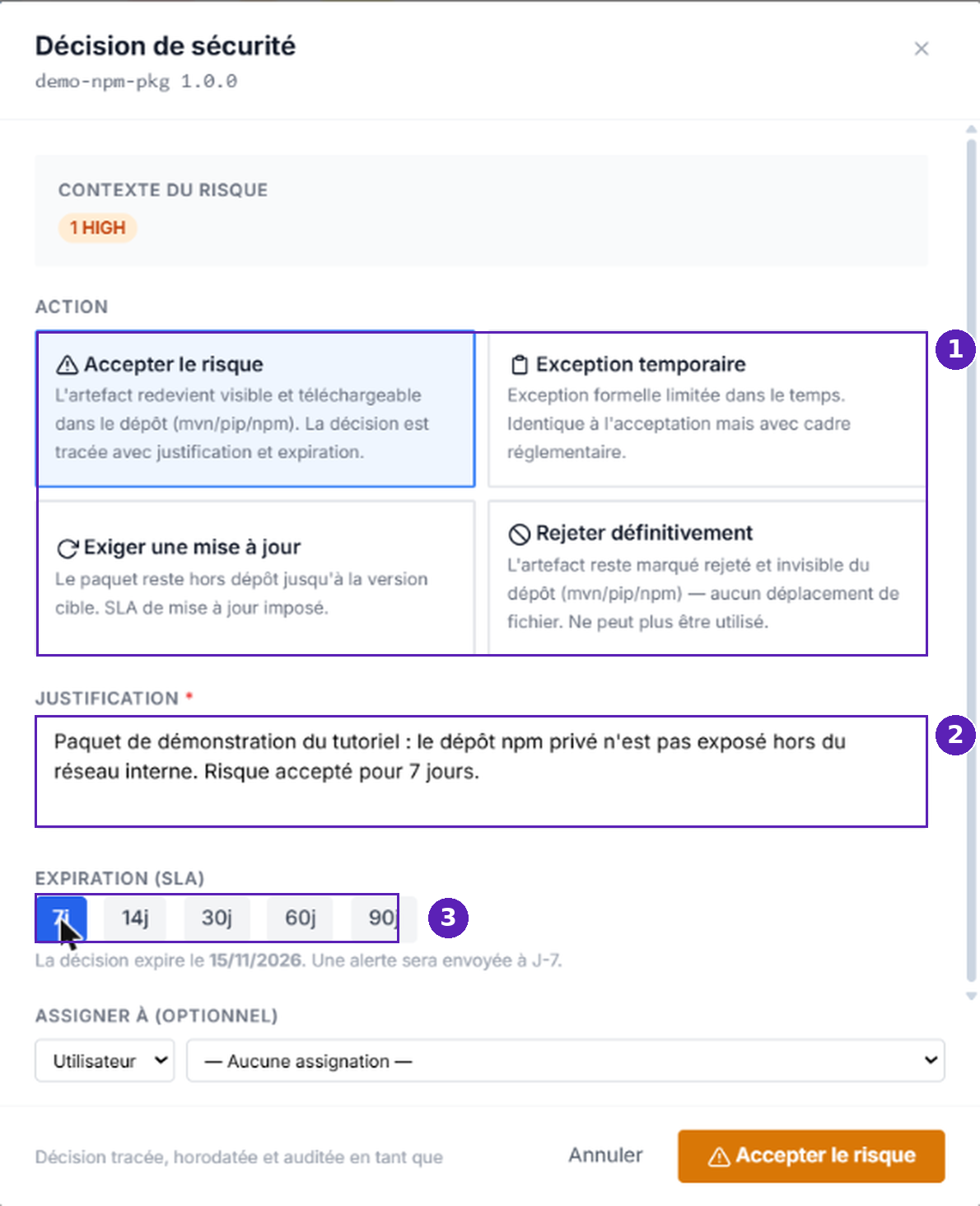
Figure 3 — The four actions (1), the justification (2) and the expiry (3).
- Choose Accepter le risque. The text under each action changes with the format: here, for an npm package, it says the artefact becomes visible and downloadable by
npm. - Write the justification: why this risk is acceptable, and what limits it.
- Choose the expiry: 7j, 14j, 30j (the default), 60j or 90j. The window shows the end date and tells you an alert is sent seven days before.
Optionally, the Assigner à list gives the decision to a user or a group to follow up. Click the button at the bottom to record it.
On the instance used here, accepting demo-npm-pkg for 7 days had these effects:
- The package left the queue, and its status became
accepted_risk. - The npm registry now lists version
1.0.0of the package:npm installcan fetch it. - The audit log received a
SECURITY_DECISIONentry with the action, the beginning of the justification and the end date.
Require an update
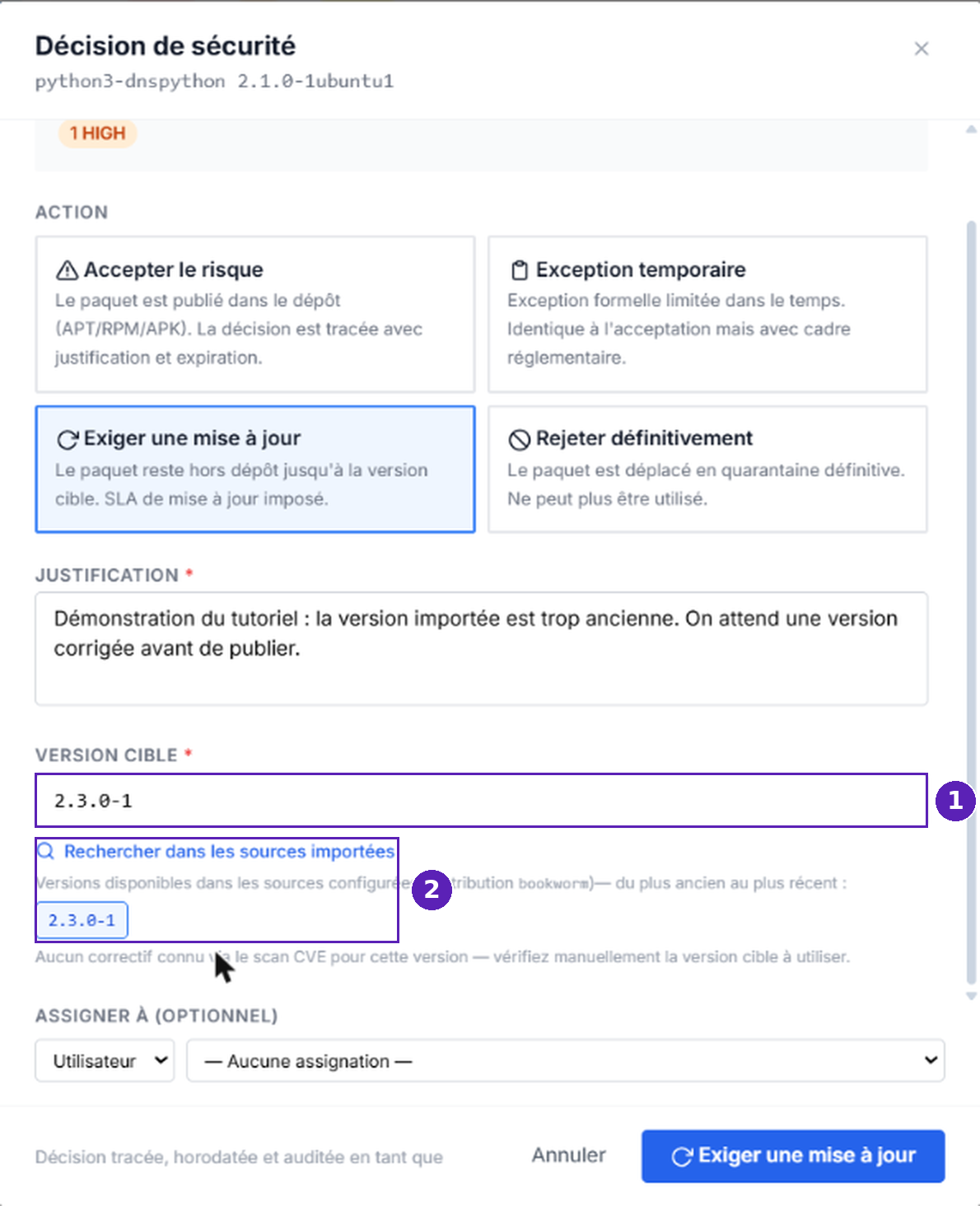
Figure 4 — The target version (1) and the search in the imported sources (2).
- Choose Exiger une mise à jour and write the justification.
- Fill Version cible, the version you wait for. Rechercher dans les sources importées lists the versions of the same package available in the distribution's configured sources, here
2.3.0-1forbookworm. Click one to fill the field. The first search can take several seconds.
Below the versions, the window tells you whether the scan knows a fixed version. Here it does not: check the target yourself.
For the Debian package python3-dnspython, this left it unpublished: it is not in the distribution's index, so no machine can install it. Its status became upgrade_required. There is no expiry: the decision stays En attente du correctif until the new version is imported.
Reject
Rejeter définitivement needs only a justification. For wireguard, a Debian package, the file was moved to the quarantine folder (staging/quarantine), its status became quarantined, and it is not in the index.
Quarantine can be undone only for Debian, RPM and Alpine packages
For these formats the file is kept in quarantine, so Décider on a quarantined package offers to restore it. For container images and Maven, PyPI and npm artefacts the content is removed on quarantine, so no decision is possible afterwards: import the artefact again.
Step 4 — Follow your decisions
Scroll to Suivi des décisions RSSI, below the list. It is the history of every decision, for audit.
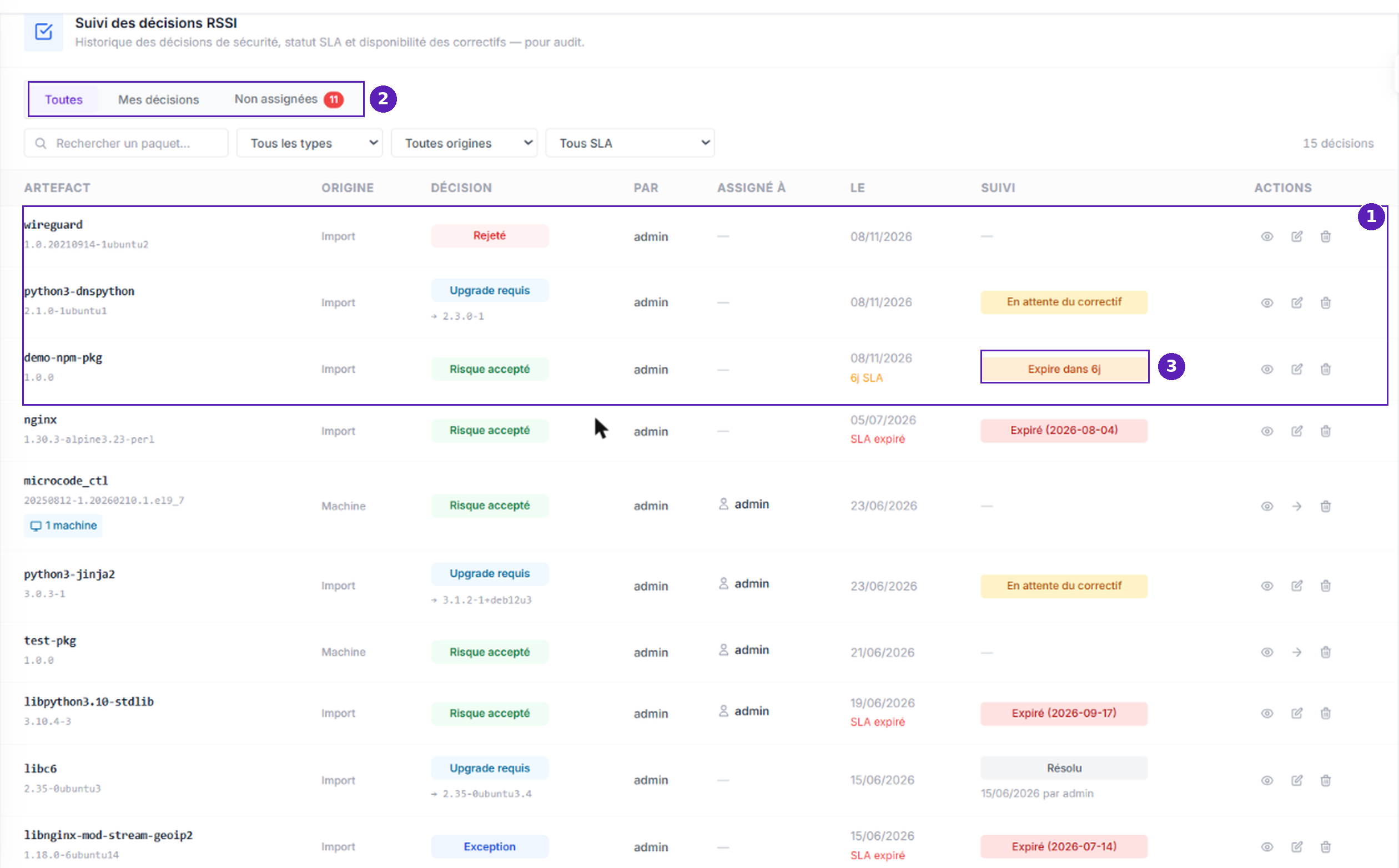
Figure 5 — The decisions just recorded (1), the tabs (2) and the follow-up of an expiring decision (3).
- The newest decisions come first: the artefact, where it comes from (Import, or Machine for a decision recorded on a machine), the decision, who made it, who it is assigned to, the date and the follow-up.
- Toutes, Mes décisions and Non assignées, with a counter of the decisions nobody is following. The filters narrow by type, origin and SLA.
- The follow-up column tells you where a decision stands: Expire dans 6j, Expiré, En attente du correctif (an update is required and has not arrived), or Résolu.
On each line, the eye opens the details: the decision, the CVE it covers, the SLA and the justification. The pencil edits it and the trash icon deletes it. An administrator can do both on every decision, a maintainer only on their own. A decision recorded on a machine has an arrow instead of the pencil: it takes you to the Décisions patch page.
What happens when a decision expires
An accepted risk or an exception does not last for ever. Repod checks the expiries every day, and when one has passed, the package goes back to review and an entry is written to the audit log. In the table above, nginx shows Expiré and its package is En révision again in the queue. Plan the follow-up before the end date, or decide again.
Troubleshooting
The queue is empty
Nothing is waiting. The filter starts on File de révision: switch it to Toutes décisions to see everything, including the packages that were let through. If you expected a package to wait, check your policy in Set your security policy before the first package.
I see the page but there is no Décider button, or it answers with an error
Deciding needs a maintainer or administrator account. An auditor can read the page only. For a quarantined container image or a Maven, PyPI or npm artefact, no decision is possible: import the artefact again.
A package I accepted is still not installable
Run sudo apt update on the machine, and check that the machine uses the distribution the package was published in. See Install a package and its dependencies from a client machine.
I accepted a risk by mistake
Click Quarantaine on the package's line to take it out of the repository again. For a Debian, RPM or Alpine package the file is kept and can be restored. For an image or a Maven, PyPI or npm artefact the content is removed, so you would have to import it again. Every decision stays in the audit log.
Next steps
- Follow patch decisions and escalations: the same decisions for packages already installed on your machines
- Fix a vulnerability on your machines: find and fix what runs on the fleet
- Produce the security audit report: the policy, the queue and the decisions in one document
- Walk through a CVE remediation: the same flow with a container image