See what your machines really download
What you'll learn:
- Where the download statistics come from, and what they count
- How to read the summary tiles, the daily chart and the format split
- How to find the most downloaded packages and the latest downloads, with the client address
- What the numbers do not tell you
Time: ~10 minutes
Prerequisites: An administrator, maintainer or auditor account. Some machines that have already installed packages from Repod, otherwise the page is empty.
Where the numbers come from
Every time a machine fetches a package file from Repod, the web server that serves the repositories writes one line in a log. The page reads that log: there is nothing to enable, and nothing is recorded by the machines themselves.
Only package files count (.deb, .rpm, .apk) and only successful requests (a complete download, or a partial one that the client resumed). The index files that apt and dnf fetch before installing, and every failed request, are left out. The page is refreshed from the log every two minutes.
Step 1 — Read the summary
Open Administration → Téléchargements.
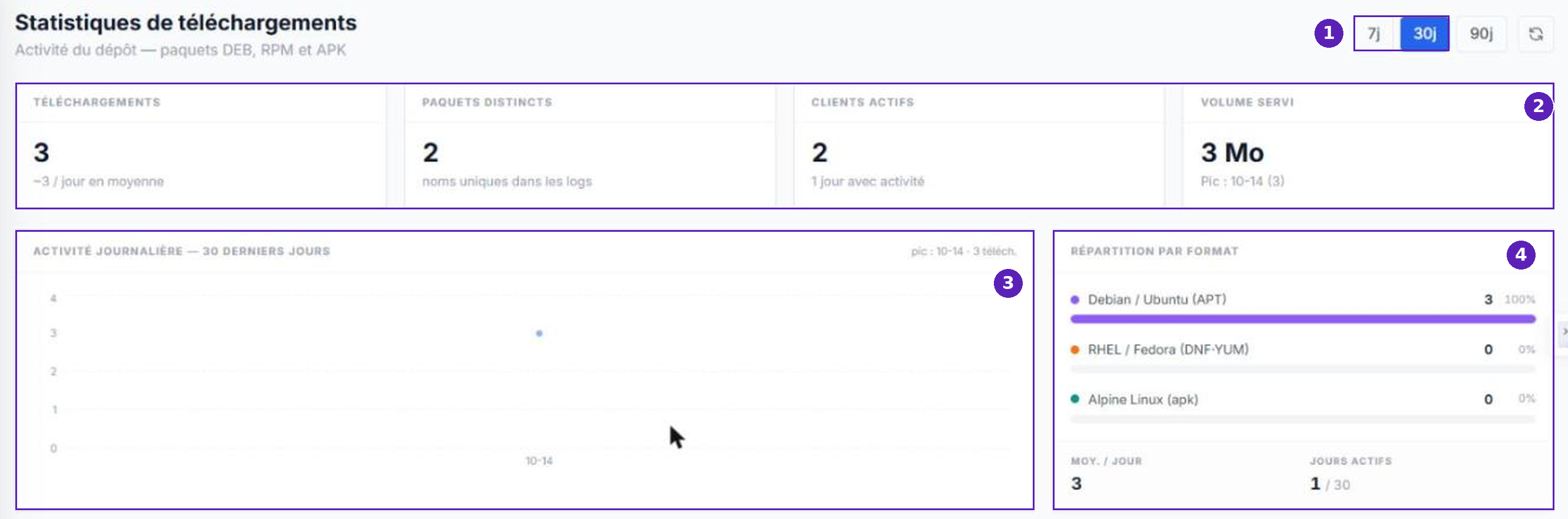
Figure 1 — The period (1), the summary tiles (2), the daily chart (3) and the split by format (4).
- Choose the period (1): 7j, 30j (the default) or 90j. The button with the circular arrow reloads the data.
-
The four tiles (2) summarise the period:
Tile What it counts Téléchargements The number of package files served, with the daily average Paquets distincts The number of different package names Clients actifs The number of different IP addresses that downloaded, and on how many days there was activity Volume servi The total size of what was sent, and the busiest day -
The chart (3) shows the downloads per day. A single day of activity is drawn as a single dot, as in the figure.
- The panel on the right (4) splits the downloads between the three formats, with the average per day and the number of active days out of the period.
If nothing was downloaded in the period, the tiles show zero and the chart says Aucune activité sur cette période. On this instance the last downloads date from 14 October, so 7j is empty and 30j shows three downloads.
Step 2 — Find the packages and the downloads
Scroll down.
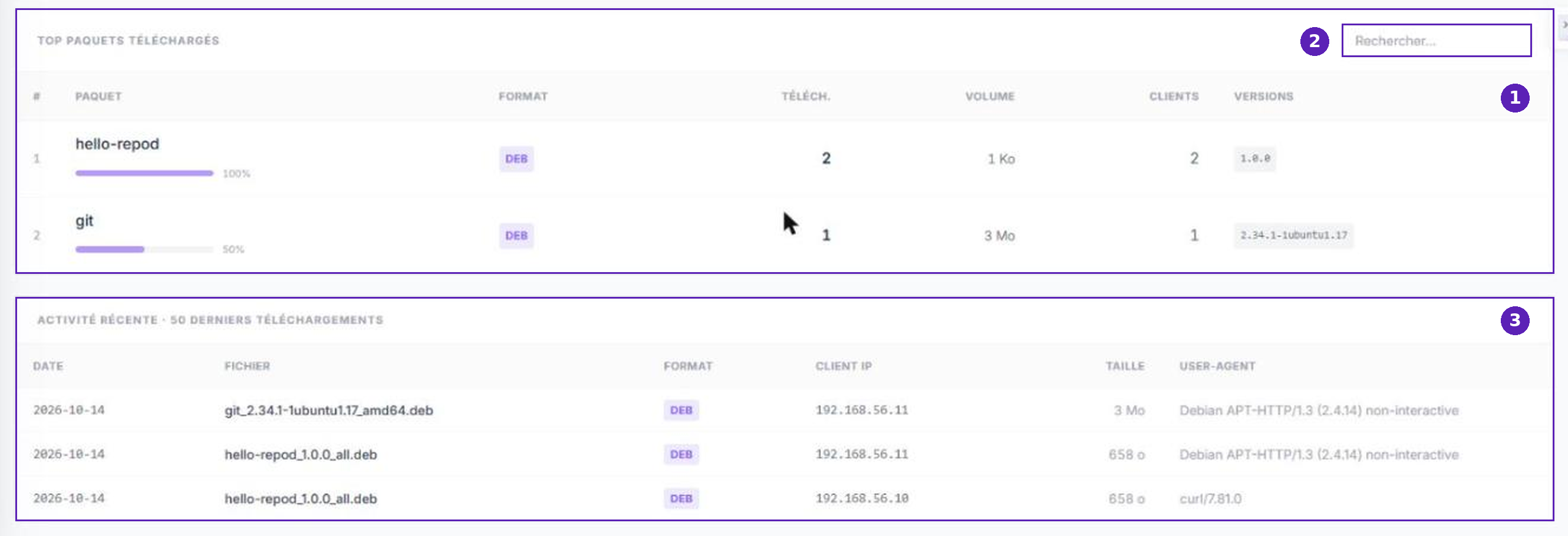
Figure 2 — The most downloaded packages (1), the search box (2) and the latest downloads (3).
Top paquets téléchargés (1) ranks the packages of the period, up to 50: the format, the number of downloads, the volume sent, the number of different clients, and the versions that were downloaded. The bar under each name is the share of the most downloaded package. Use the search box (2) to find one package.
Activité récente (3) lists the last 50 downloads, newest first: the date, the file name, the client address, the size and the user agent. The user agent tells you which tool downloaded: in the figure, Debian APT-HTTP is apt on a machine, and curl/7.81.0 is a manual download.
What to use it for
- Check that a rollout reached the machines. After you publish an update, look for the new version in the Versions column and for the addresses of your machines in the latest downloads.
- Find a package nobody uses. A package that never appears over 90 days is a candidate for cleaning up (see Back up Repod and rehearse a restore before you remove anything).
- Spot a download you did not expect. An address you do not recognise, or a
curluser agent on a package that onlyaptshould fetch. - Estimate your bandwidth. The Volume servi tile is the total that Repod sent over the period.
What the numbers do not tell you
- A client is an address, not a machine. Machines behind the same router or proxy share one address and count once. A machine that changes address counts twice.
- The address is the one the web server sees. Behind a load balancer that does not pass the original address on, every download shows the balancer's address.
- Only APT, RPM and APK files are counted. Container images, Maven, PyPI and npm packages are not part of these statistics.
- A download is not an installation. A machine can download a package and fail to install it. For what is installed, use the machine inventory.
- You only see your own downloads. On a multi-tenant (SaaS) deployment, each organisation sees only the downloads made through its own subdomain.
- The page is for administrators, maintainers and auditors. A reader does not see the menu entry, and the data is refused if they ask for it directly, because it contains client addresses.
What's next
- Cache public repositories for slow or offline sites: save bandwidth on the public mirrors your machines also use
- Monitor Repod's health and read the system logs: the same web server's logs, line by line
- Install a package on a machine from the interface: the installations that produce these downloads