Find, inspect and manage the packages in your repository
What you'll learn:
- What the Paquets page lists, and what the numbers and badges on it mean
- How to find a package, and why a package you imported may not look "available"
- What the inspection panel tells you before you install a package on a machine
- How to fix missing dependencies, delete a package safely, and repair the list when it is wrong
Time: ~20 minutes
Prerequisites: At least one package in the repository, uploaded or imported. Any role can read the page. Deleting a package needs a maintainer or administrator account.
What is this page?
Linux → Paquets is the catalogue of what your machines can install: every .deb, .rpm and Alpine package stored in the repository. It answers three questions: is it there, can my machines install it, and is it safe.
One line per package name
The list shows one line per package name, with its latest version. A package with three versions is one line. The title counts these lines (1062 paquets on the demo instance), not files. Container images, Maven, PyPI and npm packages are in their own pages.
Step 1 — Read the list
Open Linux → Paquets.
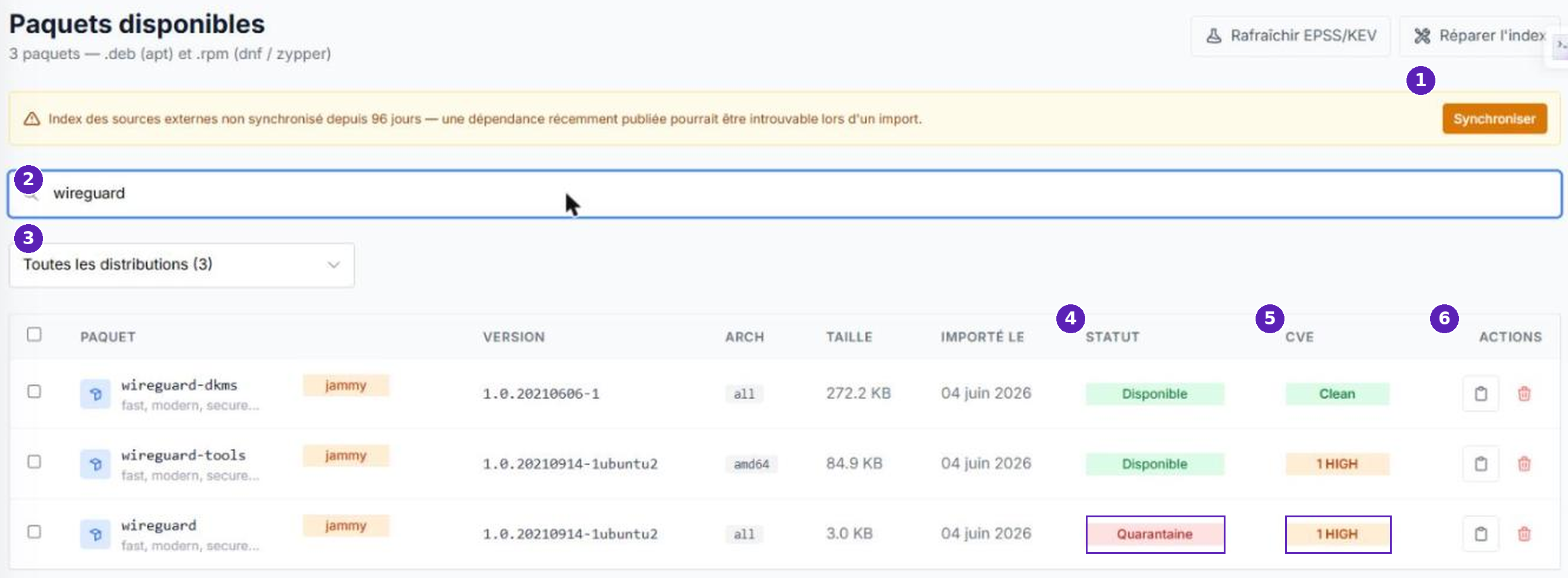
Figure 1 — The synchronisation banner (1), the search box (2), the distribution filter (3), the status (4), the CVE badge (5) and the actions (6).
Why is there a yellow banner?
- The banner appears when the index of at least one external source is more than 24 hours old (here, 96 days). It does not mean your repository is broken. It means a dependency that was published upstream recently may be missing from Repod's copy of the upstream index, so an import that needs it could fail with "not found". Synchroniser refreshes all sources. The first synchronisation of a large source takes a few minutes.
How do I find a package?
- The search box filters as you type, on the package name and description.
- The distribution filter lists every distribution with the number of packages in it (
jammy,almalinux9,alpine3.20…). The same package name can be on several distributions, as separate lines.
What do the status and the CVE badge mean?
-
Statut says whether your machines can install the package:
Status Meaning Disponible Published. apt,dnforapkon a machine can install itN dép. manquantes Published, but some of its dependencies are not in the repository. Click it to fix it (Step 3) En révision Stored but not published: your CVE policy sent it to review Quarantaine Stored but not published: someone quarantined it, or rejected it Mise à jour requise Not published: a decision asked for a newer version Bloqué Not published: blocked by your policy A package accepted after review (accept the risk or exception) is published again and reads Disponible.
-
CVE shows the worst severity found by the scan, with the count: CRITICAL, HIGH, MEDIUM. Clean means no critical, high or medium vulnerability. A dash means the package was never scanned.
Hover the status of an unpublished package
The tooltip tells you what to do: Non publié : les machines ne peuvent pas l'installer. Décidez de son sort dans Décisions CVE. The decision itself is made on the Décisions CVE page, see Decide what happens to a package that failed a CVE check.
-
The two icons on the right are Inspecter (Step 2) and the red trash icon (Step 4).
Step 2 — Inspect a package
Click the first icon on a line. A panel slides in from the right.
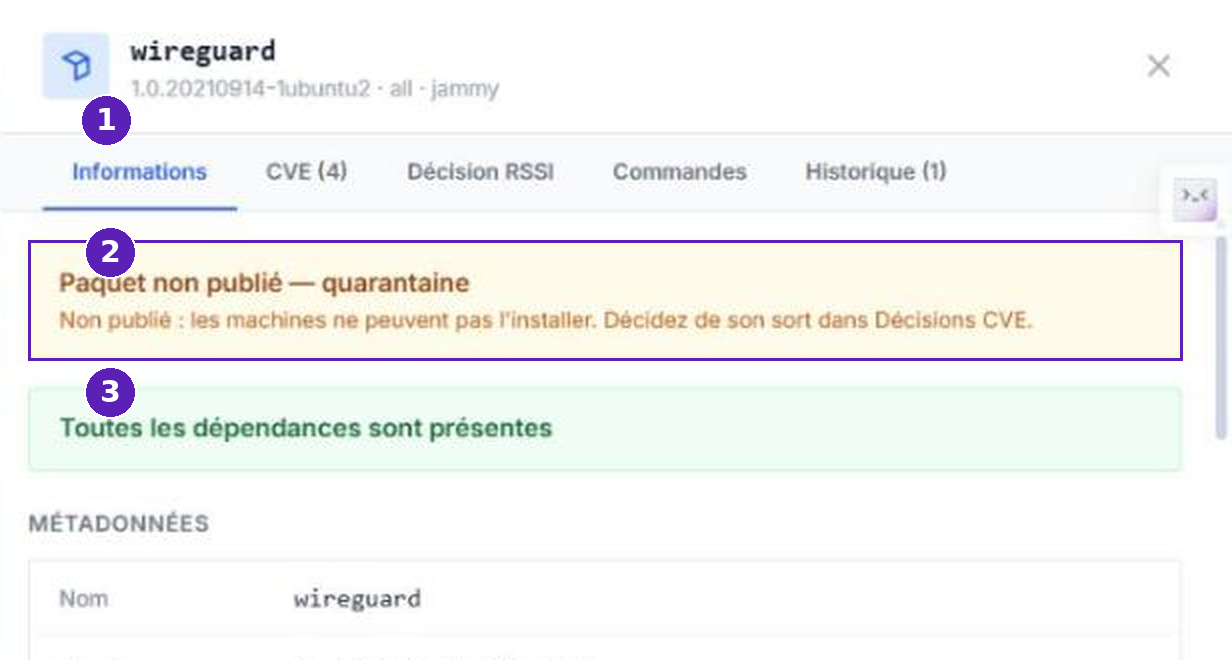
Figure 2 — The five tabs (1), the warning for an unpublished package (2) and the dependency check (3).
- The tabs: Informations, CVE, Décision RSSI, Commandes and Historique. The number next to a tab is how many items it holds.
- For a package that is not published, an orange banner comes first. It names the state (here quarantaine) so you do not read the rest as "this is installable".
- The green line Toutes les dépendances sont présentes means every package it depends on is in the repository. Below it you find the metadata (version, architecture, distribution, size, who imported it and when, the description), the SHA-256 fingerprint of the file, and the result of each check run at import: format, checksum, antivirus, CVE scan, signature and dependencies.
Which tab for which question?
| Question | Tab |
|---|---|
| What exactly is this file, who put it here? | Informations |
| Which vulnerabilities, and how likely are they to be exploited? | CVE (each shows an EPSS score) |
| Did someone decide about it, who, why, until when? | Décision RSSI |
| What do I type on a machine? | Commandes |
| What happened to it over time? | Historique (the audit entries for this package) |
What does the Décision RSSI tab show?
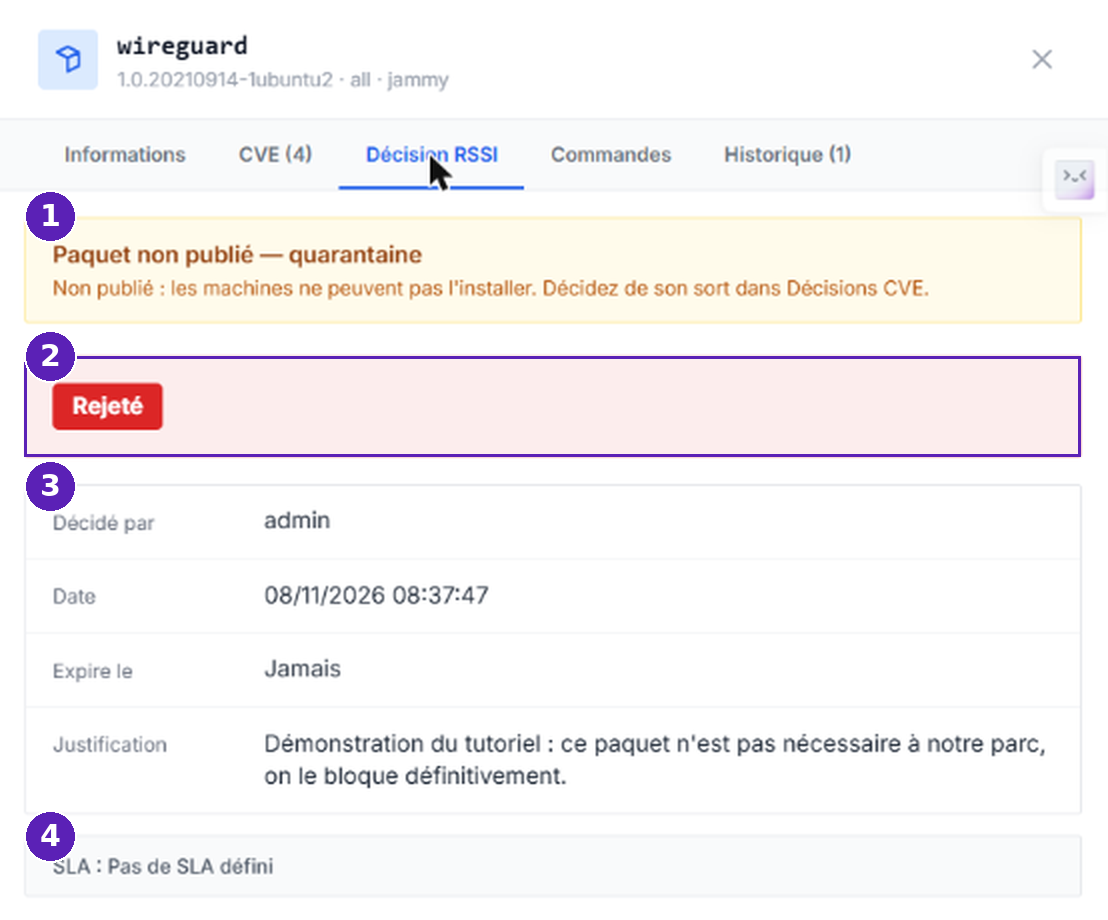
Figure 3 — The state (1), the decision (2), the details (3) and the SLA (4).
- The banner repeats that the package is not published.
- The label is the decision taken: Rejeté, Risque accepté, Exception or Mise à jour requise.
- Who decided, when, until when, and the written justification. Expire le: Jamais means the decision has no end date.
- The SLA line reads one of: Pas de SLA défini, Valide — N jour(s) restant(s), Expire dans N jour(s) (the last days), or Expiré — révision requise. When an accepted risk expires, a daily job at 08:00 puts the package back in review.
What can I copy for a machine?
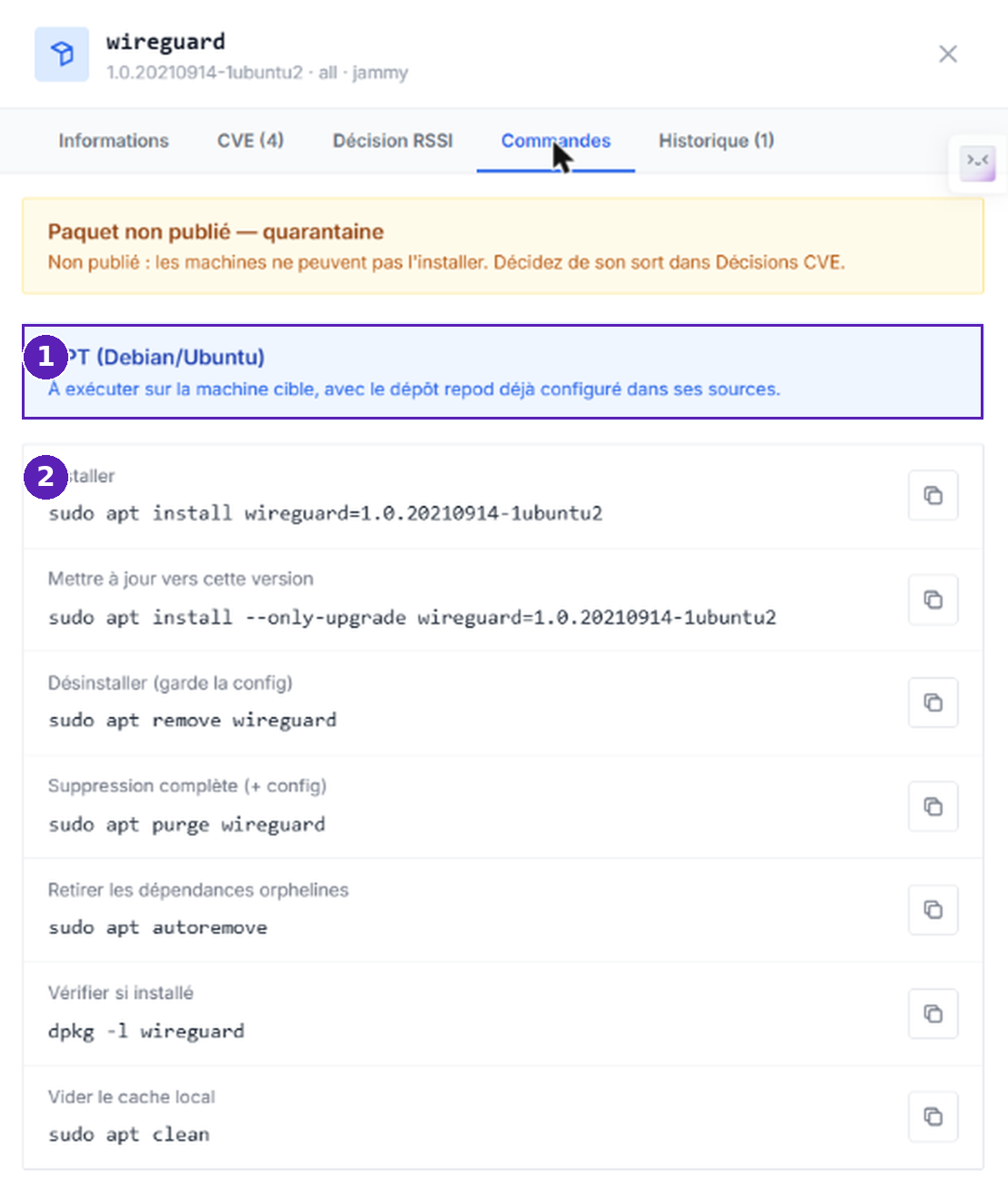
Figure 4 — The banner (1) and the commands (2).
The Commandes tab gives ready-made commands for the package's own format (apt here, dnf or apk for the others), each with a copy button: install a pinned version, upgrade to it, remove, purge, remove orphans, check what is installed and clean the cache. They assume the machine already uses your repository, see Install a package and its dependencies from a client machine.
The commands are shown even when the package is not published
On a quarantined package the install command is still displayed, but it fails on the machine because the repository does not offer that package. Read the banner first.
Step 3 — Fix missing dependencies
A package can be published while one of its dependencies is not in the repository. A machine that installs it then fails with "unmet dependencies". The status reads N dép. manquantes, in orange.
- Click it. The Résoudre les dépendances panel lists each missing package.
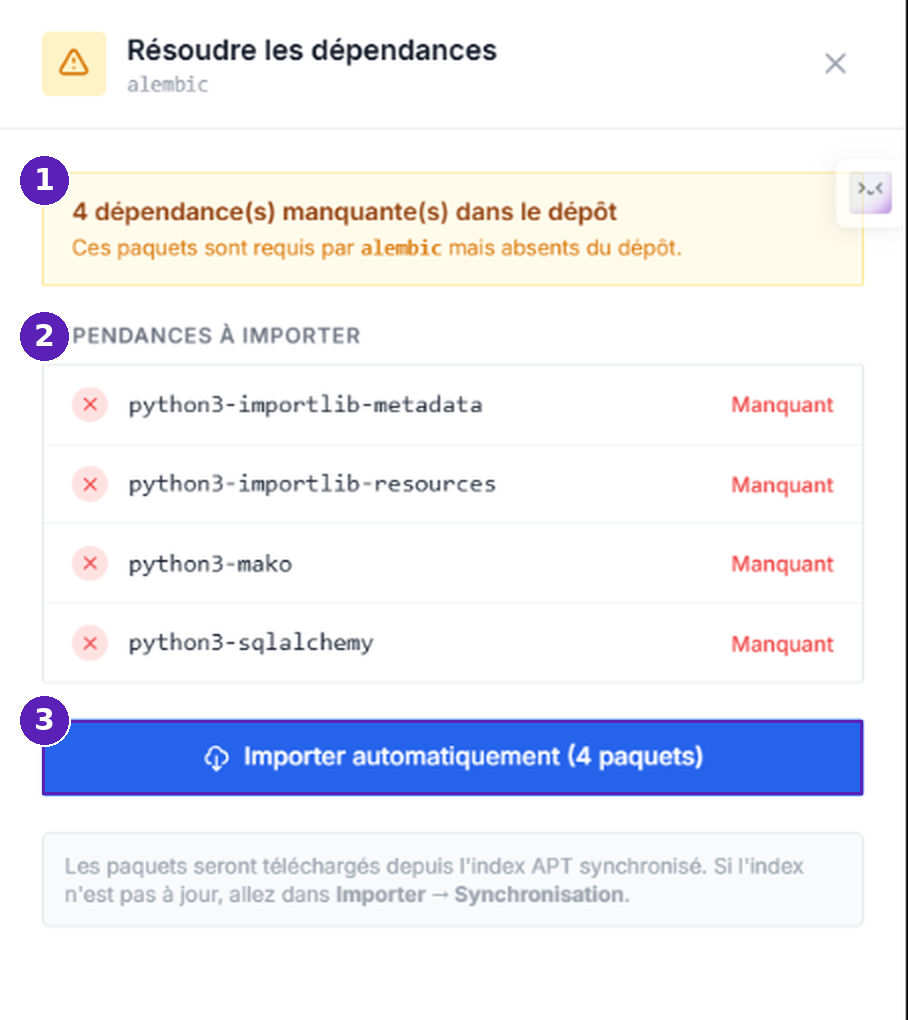
Figure 5 — The summary (1), the missing packages (2) and the automatic import (3).
- Click Importer automatiquement. Repod downloads each missing package from the synchronised upstream index and runs it through the same checks as any import: antivirus, CVE scan and your CVE policy.
- When it finishes, the list reloads and the status turns Disponible.
An imported dependency can land in review
A dependency is a package like any other. If your policy sends it to review, it is stored but not published, and the package that needs it still cannot be installed. Decide about it on the Décisions CVE page. If the import says a package is not found, synchronise the sources first (the banner of Figure 1).
Step 4 — Delete a package
The red trash icon deletes the package from the repository. A confirmation window asks first.
It deletes every version
Deletion works on the package name: all its versions are removed from the repository, their files from the pool, their manifests and their line in the list. The audit log keeps a DELETE entry. Machines that already installed the package keep it, but they can no longer download it from you.
To delete several packages, tick their checkboxes (the box in the header selects the current page) and click Supprimer (N). The confirmation counts them and says "toutes versions". If some fail, a message lists their names.
If you only want to stop machines from installing a package, quarantine it from the Décisions CVE page instead: it keeps the file and the history, and you can accept it again later.
Step 5 — When the list is wrong
Two buttons at the top right repair the list. They change nothing in the packages themselves.
| Button | Use it when |
|---|---|
| Réparer l'index | A package is in the repository but missing from the list, or shows an old status. It rebuilds the list from the packages stored in the repository. It does not touch the repository |
| Rafraîchir EPSS/KEV | A CVE shows no exploitation score, or an old one. It re-reads the local EPSS and KEV data for the CVEs already found, without scanning again. It runs in the background |
Is the status always up to date?
A decision, a quarantine, an expiry and a CVE re-match each update the status in the list immediately. Before this was fixed, a rejected package kept reading En révision until someone clicked Réparer l'index. If you still see that on an older deployment, click it once.
Troubleshooting
| Symptom | Cause and fix |
|---|---|
| Every import goes to review with the message Grype — réponse illisible, révision RSSI requise | The vulnerability database that the scanner uses is more than 5 days old (or missing), so the scan fails and Repod chooses caution. The nightly security synchronisation normally refreshes it, so check that it is enabled and succeeding, see Keep your data fresh and your platform running. The Administration → Supervision page shows the database status (valid or invalid). Restarting the backend downloads it again in the background when it is invalid (a few GB, several minutes). Then click Rescanner on the packages in review |
| An imported package stays in review after a rescan, with the old message | The rescan stored the new CVE list, but your policy still sends those severities to review. That is a decision for a person: open it in Décisions CVE |
| The package is in the repository but not in the list | Réparer l'index |
| N dép. manquantes does not go away | The dependency is in review, or the source index is stale. Check the banner, synchronise, then import again |
| The trash icon is missing or fails with a permission error | Deleting needs the maintainer or administrator role |
What you've accomplished
You can now read the Paquets page like a catalogue: tell a published package from a stored one, inspect it before putting it on a machine, fix its dependencies, delete it safely and repair the list.
Next steps