Restrict deployments to maintenance windows
What you'll learn:
- What a maintenance window is, and what it does and does not restrict
- How to create a window for a group of machines, or for a single machine
- What happens to a deployment requested outside the window, and how to cancel it
- How windows combine, and the mistakes that make a deployment wait forever
Time: ~15 minutes
Prerequisites: At least one machine tagged (see Add your first client machine), the install workflow of Install a package on a machine from the interface, and an administrator account to create windows.
What a window does
Without any window, a deployment starts the moment you confirm it. A maintenance window restricts that to time ranges you choose, for example "weeknights between 02:00 and 04:00". A deployment requested at any other time waits for the next opening instead of touching the machine.
A window applies to deployments: installing packages, deploying container images and deploying application packages. It does not restrict scans, the daily refresh of the vulnerability data, or anything that only reads from a machine.
Two properties to know first:
- The default is open. A machine with no window is deployed to immediately, as it always was. Adding a window is what turns the restriction on, and only for the machines it covers.
- A window is a local time and a time zone, not a UTC hour.
02:00inEurope/Parisstays at 2 a.m. Paris time all year, summer time and winter time included.
Step 1 — Open the panel
Open Clients → Machines clientes and scroll to Fenêtres de maintenance.

Figure 1 — The panel before any window.
- + Nouvelle fenêtre. Opens the form (administrator only; other roles can read the list).
- The empty state. "Aucune fenêtre définie — les déploiements s'exécutent immédiatement, sans restriction." This is the default.
Step 2 — Create a window
Click + Nouvelle fenêtre.
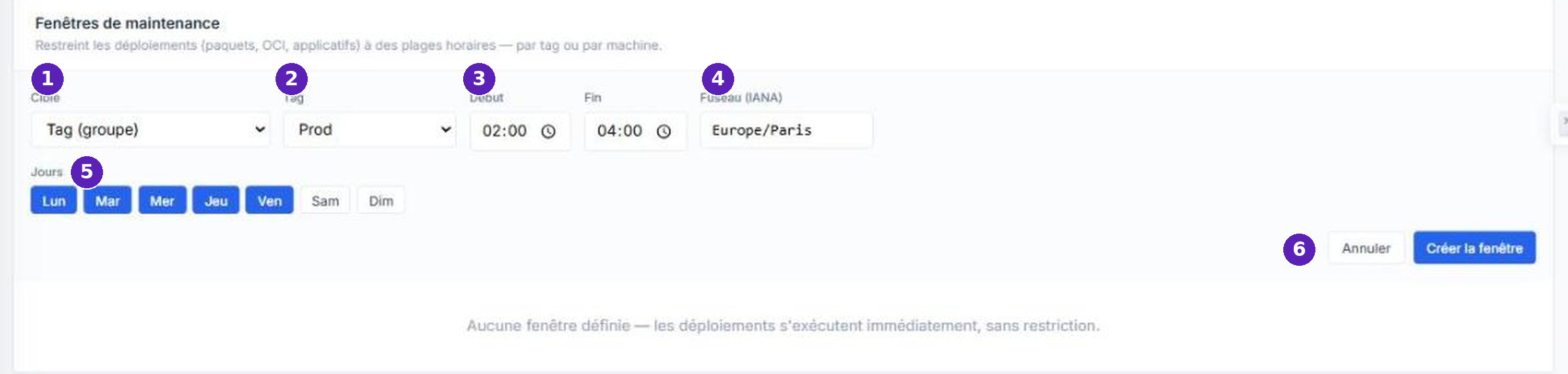
Figure 2 — The form.
- Cible. Tag (groupe) covers every machine carrying a tag. Machine précise (override) targets one machine.
- Tag. The tags that exist on your machines. Here
Prod, carried byubuntu-deb. - Début and Fin. The opening and closing time, in local time. If the end is earlier than the start, the window crosses midnight: the form's default of
22:00to02:00is a night window. - Fuseau (IANA). The time zone, written as an IANA name such as
Europe/Paris,America/New_YorkorUTC.Europe/Parisby default. - Jours. Click the days on which the window is open. Here Monday to Friday.
- Créer la fenêtre. Saves it.

Figure 3 — The window in force.
- The target.
TAGor machine, then its name. - The schedule. Days, hours and time zone.
- Supprimer. Removes the window. Machines it covered are open again.
A window with no day does nothing useful
Tick at least one day, or the window is never open and every deployment to its machines waits for ever.
Step 3 — See a deployment wait
With the window above created on Wednesday at 21:17 Paris time, we asked for an installation of hello-repod on ubuntu-deb from Clients → Déploiement, exactly as in the remote installation chapter. The window opens the next day at 02:00, so the request has to wait.

Figure 4 — A deployment waiting for its window.
- En cours. The deployment is listed as running, because it is accepted and queued.
- En attente d'une fenêtre de maintenance. The step it is in. Nothing has been sent to the machine: no simulation, no installation.
- Annuler. Cancels it. The cancellation is taken into account at once, even though the list can keep showing the line for a few seconds; reload the page to see it disappear. The job is then recorded as cancelled.
When the window opens, Repod resumes the job by itself and runs the usual steps: the mandatory simulation (dry-run), your confirmation, the installation and the check. The wait does not hold a deployment slot while it lasts, so other deployments are not blocked behind it.
Step 4 — Know how windows combine
- A machine window replaces the tag windows. If a machine has its own window (Machine précise), the windows of its tags are ignored for it. They are never merged.
- Several tags add up. A machine carrying two tags, each with a window, can be deployed to when either is open.
- A deployment to several machines needs a common opening. Its effective window is the intersection of the windows of all the machines targeted. Machines with no window do not restrict it.
- An impossible request is refused at once. If the machines targeted never have a common opening over the coming week (for example one window on Monday and another on Tuesday), the deployment is refused immediately with an error instead of waiting for ever.
Mistakes to avoid
- Forgetting the time zone.
02:00is read in the time zone of the window, not in yours or the server's. Check that the defaultEurope/Parisis the one you mean. - Tagging the wrong machine. A window follows the tag. Check the Groupes card of the same page to see which machines carry it before you rely on a window.
- Using a window as an emergency brake. For an urgent fix outside the hours, delete the window or give the machine its own override, then restore it. Do not wait for the next opening.
Checklist
- Define windows by tag, one per environment (production, staging), and keep the overrides for real exceptions.
- State the time zone explicitly, and test with a deployment to a harmless package.
- Review the windows after a change of tags: they follow the tags, not the machines.
- Cancel a deployment you no longer want, rather than letting it fire at the next opening.
What's next
- Install a package on a machine from the interface: the steps a deployment goes through once the window opens
- Maintenance windows: the API, with every field and example
- Fix a vulnerability on your machines: patch within your windows
- Add your first client machine: how to tag machines