Schedule the recurring scans and mirrors
What you'll learn:
- Which jobs Repod runs by itself every day, and which ones you have to switch on
- What each scan looks at, what it changes, and what it never touches
- How to space the jobs so they do not collide with each other or with your backup
- Which jobs need something configured first, such as baselines or watch lists
Time: ~25 minutes
Prerequisites: You have read Keep your data fresh and your platform running. You do not need client machines or registries to follow along: most cards simply stay off until you use the feature they belong to.
A package is scanned when it arrives. But a vulnerability published tomorrow does not change a package that is already published, so Repod re-checks what it holds on a schedule. The same goes for your client machines, which drift away from what you declared. Each of these jobs has its own card in Administration → Paramètres.
All of them follow the same pattern: a switch, a time of day (in the server's time zone) and, for the heavier ones, a cap on how much work one run may do. Switching a job off stops the schedule only. The manual button on the matching page always keeps working.
Step 1 — Read the daily timeline
Here is what runs, with the default time and whether it is on in a new installation. Jobs set by another card are in the previous chapter.
| Time | Job | On by default | Where it is explained |
|---|---|---|---|
| 02:00 | Retention and cleanup | Yes | Data freshness, Step 5 |
| 03:00 | Security synchronization | Yes | Data freshness, Step 1 |
| 03:30 | Cleanup of old container tags | No | Step 3 |
| 03:45 | CVE re-matching | Yes | Step 2 |
| 04:30 | Backup | Yes | Data freshness, Step 4 |
| 05:00 | Retroactive scan of pushed images | No | Step 3 |
| 05:30 | Re-scan of Maven, PyPI and npm artifacts | No | Step 5 |
| 06:15 | Maven, PyPI and npm mirror | No | Step 5 |
| 06:30 | Drift detection | Yes | Step 2 |
| 06:30 | Container image mirror | No | Step 5 |
| 06:45 | Application dependency scan | Yes | Step 2 |
| 09:00 | Compliance scan | Yes | Step 3 |
| every 6 h | Machine inventory scan | Yes | Step 4 |
Two things to read from this table. The schedule is already spread out, so you rarely need to touch it. And the opt-in jobs are the ones that cost real network or disk, or that delete things: Repod makes you ask for them.
Step 2 — The scans that run by default
Scroll to Détection de dérive planifiée. The next two cards sit right under it.
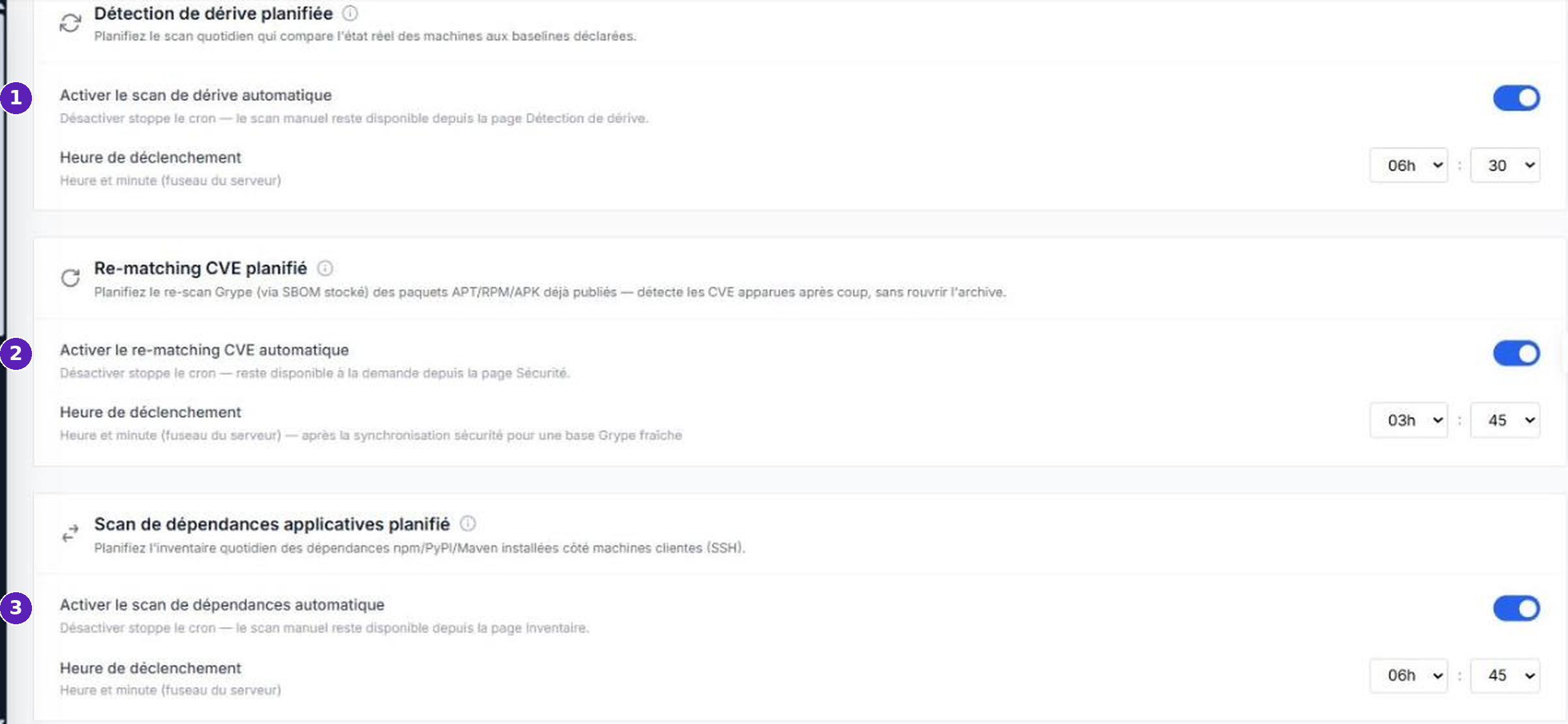
Figure 1 — Three scans that are on by default.
- Détection de dérive planifiée (06:30). Compares each machine that has a baseline assigned, by tag or by client, with the desired state you declared: packages, services, files and permissions. It records the gaps. A machine with no baseline is simply skipped, which is a normal state, not an error. The job only reads: it never changes a machine.
- Re-matching CVE planifié (03:45). Re-runs Grype against the SBOM stored when each package was first scanned, to catch CVEs published since. It does not reopen the package file, so it is cheap. A newly found CVE that breaches your CVE policy sends the package to the review queue on Décisions CVE.
- Scan de dépendances applicatives planifié (06:45). Lists the npm, PyPI and Maven dependencies installed on your client machines, through SSH.
Keep the re-matching after the synchronization
The re-matching is scheduled 45 minutes after the nightly synchronization so that it uses a freshly updated Grype database. This is only a calendar gap, not a guarantee: if your synchronization takes longer, for example behind a slow proxy, move the re-matching later.
Space out the jobs that open SSH connections
The drift scan, the application dependency scan and the machine inventory scan each open their own SSH connection to every active machine. If your machines dislike several connections in a short time, keep their times apart.
Step 3 — Compliance and the container registry
Keep scrolling: Scan de conformité planifié comes next, followed by two cards for container images.
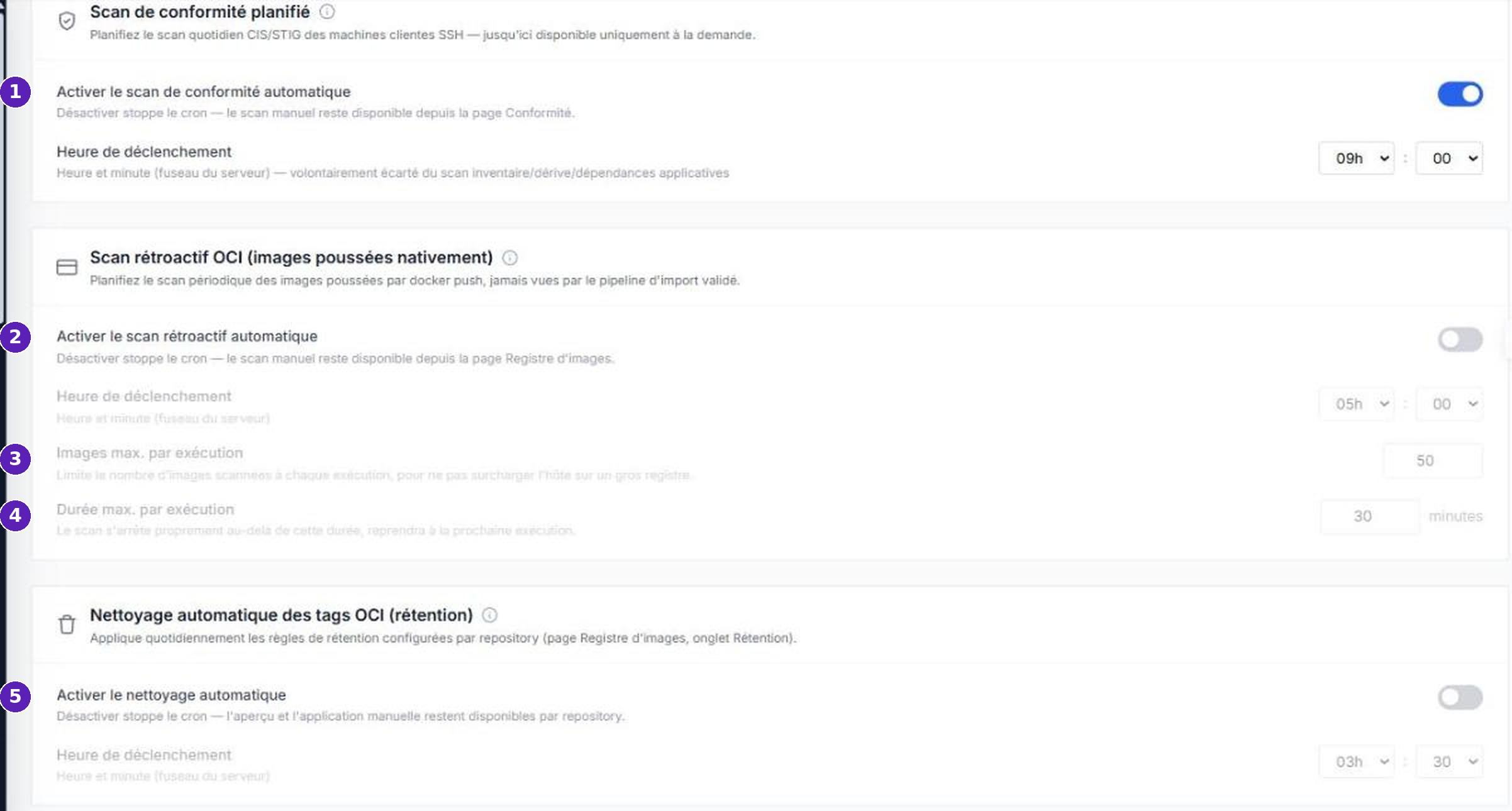
Figure 2 — Compliance, then the two container registry jobs.
- Scan de conformité planifié (09:00, on). Runs the CIS check on every active SSH machine, plus any STIG profile assigned by tag or to the machine. At least CIS always runs, even with no assignment. Machines in agent mode are skipped: this scan executes a script on the machine, which an agent connection never allows.
- Scan rétroactif OCI (05:00, off). Runs ClamAV and Grype on images that were pushed directly with
docker pushand never went through the validated import. It never deletes or republishes anything: a bad verdict lands the image in the review queue on Décisions CVE. - Images max. par exécution (default 50). Caps the work of one run, so a large registry does not overload the host.
- Durée max. par exécution (default 30 minutes). The run stops cleanly at that limit and carries on at the next run.
- Nettoyage automatique des tags OCI (03:30, off). Applies the retention rules you define per repository on the Registre d'images page. A repository with no rule is never touched, a tag is deleted only if it fails every active criterion of its rule, and a tag with no known creation date is never deleted.
Turn on 2 once you have images pushed by your teams, and 5 only after you have written retention rules and previewed them on the registry page: it is the only job of this chapter that deletes.
Step 4 — The machine scan
Scroll to Scan automatique des machines.

Figure 3 — The machine inventory scan.
- Activer le scan automatique. On by default. Collects the installed packages of every active machine and detects known CVEs. A machine in SSH mode is reached over SSH, a machine in agent mode is read from its last check-in.
- Mode de planification. Intervalle runs every N hours. Heure fixe runs at a chosen time on the days you tick.
- Fréquence. In interval mode, the number of hours between runs. Six is a reasonable start.
This is the job that feeds the Inventaire page, the executive dashboard and the compliance figures, so it is the one to keep on. If you have hundreds of machines, lengthen the interval before you disable it.
Step 5 — Watch lists: Maven, PyPI, npm and container images
The remaining cards work on lists you build yourself, so they do nothing until you have filled the list.
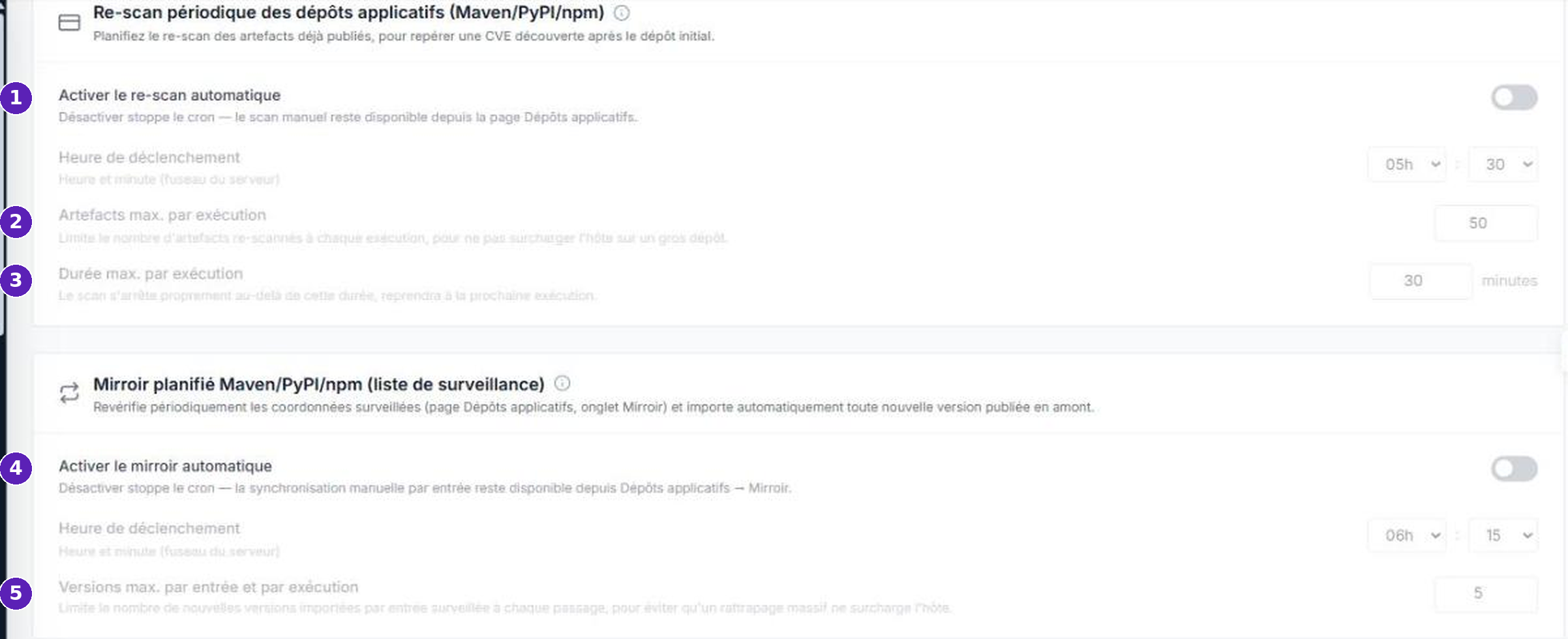
Figure 4 — Application repositories.
- Re-scan périodique des dépôts applicatifs (05:30, off). A Maven, PyPI or npm artifact is immutable: a version published months ago keeps the verdict it got at the time, even if a critical CVE is found on it since. This job scans again the artifacts whose status is validé. A new bad verdict sends the artifact to the review queue, never to deletion.
- Artefacts max. par exécution (50).
- Durée max. par exécution (30 minutes).
- Mirroir planifié Maven/PyPI/npm (06:15, off). These registries have no catalogue to download, only lookups by exact name. This job re-checks a list of coordinates you chose (managed on Dépôts applicatifs → Mirroir) and imports any new upstream version. Each new version goes through the full pipeline, antivirus, CVE and policy, like a manual import.
- Versions max. par entrée et par exécution (5). Prevents a big catch-up from overloading the host.

Figure 5 — Container image mirror.
- Mirroir planifié OCI (06:30, off). A container tag can be moved by its publisher, so an image you imported stays frozen at the digest you imported. This job re-checks a list of
image:tag(managed on Registre d'images → Mirroir) and compares the upstream digest with the last known one. If the publisher pushed different content under the same tag, the whole pipeline runs again, as for a new import.
A job that is switched on but has an empty list does nothing
That is by design. Switching a mirror on before you have built its list costs nothing, but it does not protect anything either.
One more card on SaaS
On a SaaS deployment you will also see Scan croisé Grype + Trivy planifié, a second opinion from an independent engine on published packages. It is not shown on on-premise installations.
Save and check
- Click Sauvegarder in the bottom bar.
- For each job you enabled, run its manual counterpart once from its own page (Détection de dérive, Conformité, Inventaire, Registre d'images, Dépôts applicatifs) and look at the result. A schedule is only worth trusting if the manual run behaves as you expect.
- Do not stack your own changes on the default times without a reason: the defaults are already spread out.
What's next
- Keep your data fresh and your platform running: synchronization, backups and alerts
- Set your security policy: what happens when a scan finds a CVE
- Walk through a CVE remediation: handle what the scans send to review
- Deposit your first package in the interface: see the policy and the pipeline on a real package
- Upload your first package: the full flow from
.debfile toapt install