Read your licence, quotas and usage report
What you'll learn:
- How to read the Facturation & Licence page: edition, validity, quotas and unlocked features
- What each quota counts, and what "illimité" means
- How to activate, replace or deactivate a licence key, and what deactivating does
- What the usage report contains, who it is sent to, and how to send it by hand on an air-gapped site
Time: ~10 minutes
Prerequisites: An administrator account. This page only reads and changes the licence of the instance you are connected to.
What this page is for
A Repod instance runs under a licence: a signed key that sets the edition, the validity dates, the quotas (packages, users, distributions, client machines) and the list of features that are unlocked. The page shows all of it in one place, so you can answer three questions quickly: what do we have, how much of it do we use, when does it end.
The key is verified on the instance itself, with a public key. Nothing needs to reach the internet for the licence to work.
Step 1 — Read the licence and the quotas
Open Administration → Facturation & Licence.
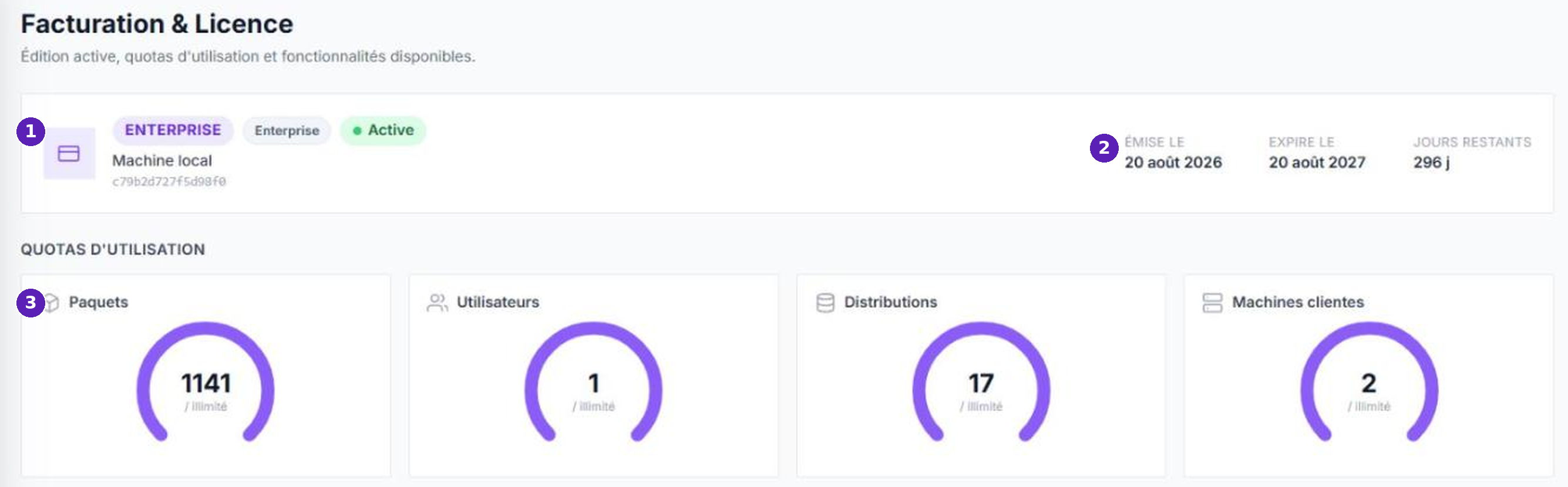
Figure 1 — The licence card (1), the validity dates (2) and the four quotas (3).
- The card (1) gives the edition (here Enterprise), the status (Active) and who the licence was issued to, with its identifier underneath. The identifier is what the vendor asks for when you contact support.
- The dates (2) give the day the licence was issued, the day it expires, and the days remaining. Plan the renewal before this reaches zero.
- The four gauges (3) show the current usage against each limit:
| Quota | What it counts |
|---|---|
| Paquets | Every package stored, all formats together (APT, RPM, APK, Maven, PyPI, npm, images) |
| Utilisateurs | The user accounts of the instance |
| Distributions | The distributions defined on the instance |
| Machines clientes | The machines registered in the inventory |
When a limit is / illimité, as here, the licence sets no ceiling for that item and the gauge only shows the count. When a limit is set, the gauge is green, turns orange from 80 % with the note Quota presque atteint, and red at 100 % with Quota atteint. The status badge on the card can also read Expirée or Invalide when the key is no longer usable.
The figures come from the server
The numbers are the ones the server itself counts and enforces, the same ones the usage report below sends. Before this page was corrected, the user count showed 0 and the package count could differ from the quota that was actually enforced.
Step 2 — See which features are unlocked
Scroll down to Fonctionnalités Enterprise. Each feature of the edition is listed with a green tick when your licence includes it: directory and single sign-on, advanced CVE policy, SBOM export, the OCI registry, the Maven/PyPI/npm formats, compliance profiles, drift detection, the NIS2 report, the executive dashboard, per-distribution and per-machine access rules, content filters, the upstream cache, high availability, verified backups and the privacy self-service.
A feature that your licence does not include is not ticked, and the matching action is refused until a licence that includes it is activated.
Step 3 — Activate, replace or deactivate the licence
Further down, Gestion de la licence is where the key is handled.
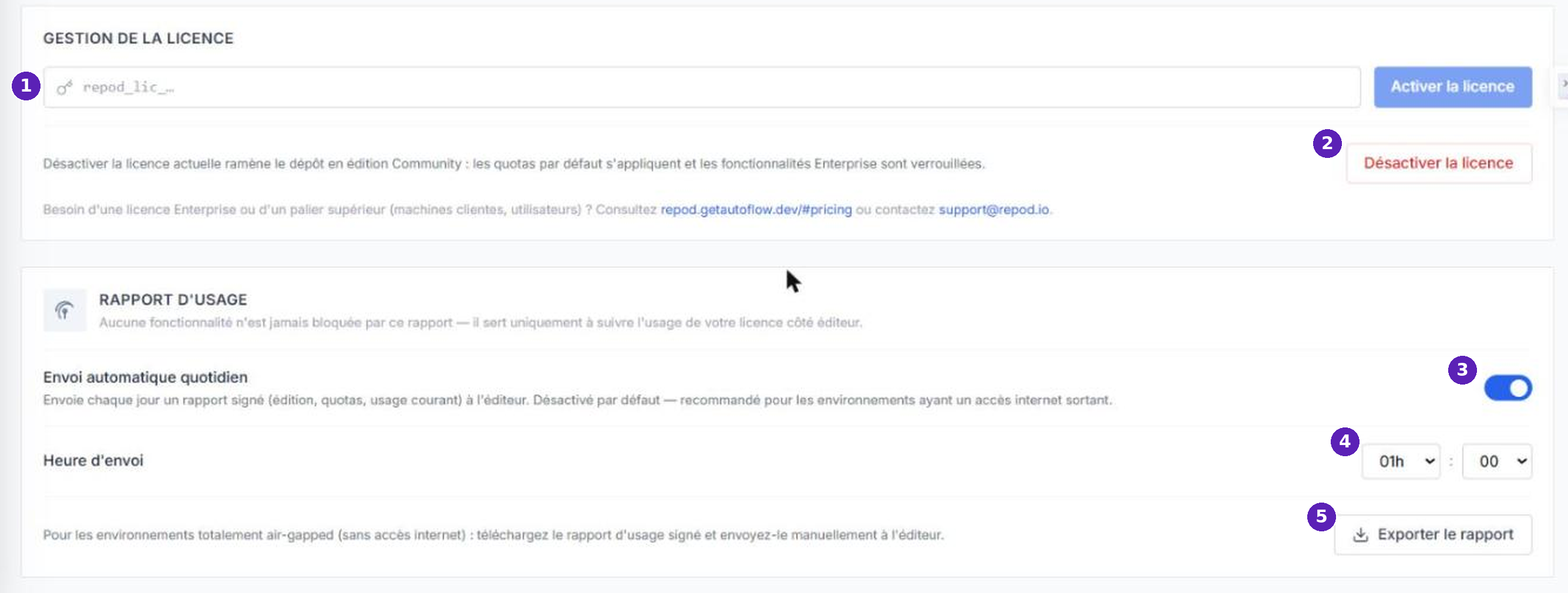
Figure 2 — The key field (1), the deactivate button (2), the daily sending switch (3), the sending time (4) and the export button (5).
- Activate (1). Paste the key you received (it starts with
repod_lic) and click Activer la licence. The key is checked right away: an invalid, altered or expired key is refused with an error message. - Renew. A renewal is a new key, not an extension of the old one: the expiry date is written inside the signed key, so only a new key can change it. Paste the new key in the same field.
- Deactivate (2). Désactiver la licence puts the instance back in Community edition: the default quotas apply and the Enterprise features are locked. Nothing is deleted, but pages that need a locked feature stop working until a licence is activated again. Do not use it to "test": it takes effect immediately.
Step 4 — Understand the usage report
The block Rapport d'usage controls a small report that lets the vendor follow the use of your licence. It never blocks anything: no feature is ever disabled because of this report.
The report contains only:
- the instance identifier and the licence identifier, and to whom the licence was issued;
- the edition;
- four counts: packages, users, distributions and client machines;
- the four quotas of the licence;
- the date of generation, and a signature that proves it was not altered.
It contains no package name, no machine name, no address and no user name. You can check this yourself with the export button below.
There are two ways to send it:
- Automatic daily sending (3). Off by default. Switch it on and choose the time (4): the instance then sends the signed report once a day. It suits an instance that can reach the internet.
- Manual export (5). On an air-gapped site, click Exporter le rapport to download the signed report, and send it to the vendor by your usual means. The signature lets the vendor confirm it comes from your instance.
A suspension reaches the instance only through the report
Because the licence is verified offline, the vendor cannot switch off an instance remotely. With automatic sending on, the answer to each report carries the current state of the licence: if it has been suspended or revoked, the instance goes back to Community edition. With sending off, the instance keeps working with the key it already holds until it expires. Choose consciously, and tell your vendor if you turn the sending off.
What this page does not do
- It does not handle payment. Prices and plans are on the vendor's site, and a new key is issued by the vendor.
- It does not enforce a limit on its own page. The quotas are enforced where the action happens, for example when you upload a package or add a machine.
- It shows one licence. Activating a key replaces the previous one.
What's next
- Back up Repod and rehearse a restore: the verified backups feature listed on this page
- Read the executive view: another Enterprise-only page
- Schedule the recurring scans and mirrors: the other daily jobs of the instance